The safe area: where text and logos must stay
The safe area is a centered rectangle that stays visible on every device. It covers about 60% of the banner’s width but only about 29% of its height, so roughly seven tenths of the vertical space is decoration that many viewers never see. On a 2560×1440 canvas the 1546×423 box means guides at 507 and 2053 px (vertical) and 508 and 931 px (horizontal).
1235×338 is the current official figure, and YouTube defines it at the minimum dimension, meaning on a 2048×1152 canvas (YouTube Help). 1546×423 is what the older version of the same help article listed as the minimum safe area for text and logos alongside the 2560×1440 recommendation (archived YouTube Help, 2019). Use the one that matches your canvas and never mix them.
What TV, desktop, tablet and mobile show
YouTube’s help page says the same banner image is used across computer, mobile and TV, but it shows differently depending on the device. Per YouTube’s earlier channel art guidelines, TVs show the largest part of the image, up to the whole 16:9 frame, desktop shows a wide strip roughly 2560×423, and phones scale the safe area to the screen width. The strip’s sides appear or get cropped depending on the browser window.
YouTube does not publish exact tablet or phone sizes today, and neither do we: the safe area is the only space you fully control, so make everything outside it look fine whether it shows or not.
Common YouTube banner mistakes
Text near the edges is the classic: it looks fine in the editor and gets sliced in a laptop window. Next is a tiny tagline that turns into a gray smudge once the safe area is scaled to a phone, so use large, heavy type and cut words. Then come uploading a file below the upload minimum, which gets stretched and blurry, adding shadows, borders or frames, which YouTube’s guidelines ask you to leave out, and leaving the area around the strip as a flat empty band instead of extending the background.
To see how other channels solved the same problem, you can download any channel’s banner in full size and compare it with the zones above. Need the thumbnail spec instead? See the YouTube thumbnail size guide.
Resize an existing image to banner size
Already have artwork? The free YouTube image resizer has a Channel banner preset that outputs exactly 2560×1440 in your browser, with an optional outline of the safe area on the preview (never in the downloaded file). Pick Crop to fill and pan the crop until the name or logo sits inside the outline, or pick Fit (blurred edges) to keep the whole image and fill the surrounding area with a blurred copy.
How to upload or change your banner
On a computer: sign in to YouTube Studio, choose Customization, then Profile, click Change next to the banner image, pick a preview, adjust the crop and click Done, then Publish. In the YouTube app on a phone: tap your profile picture, tap View channel (Android) or Your channel (iPhone and iPad), tap Edit, tap your banner image, choose a photo and tap Save. The phone flow has no crop preview, so build and check the 2560×1440 file first and use the phone only to upload it.
Design a banner that works everywhere
Start from the template, put the channel name, one-line promise and any face or logo inside the safe area, then zoom out until the box is phone width and check it still reads. The full walkthrough, including how to match the banner to your profile picture and thumbnails, is in how to design a YouTube banner that works on every device.
The free banner template
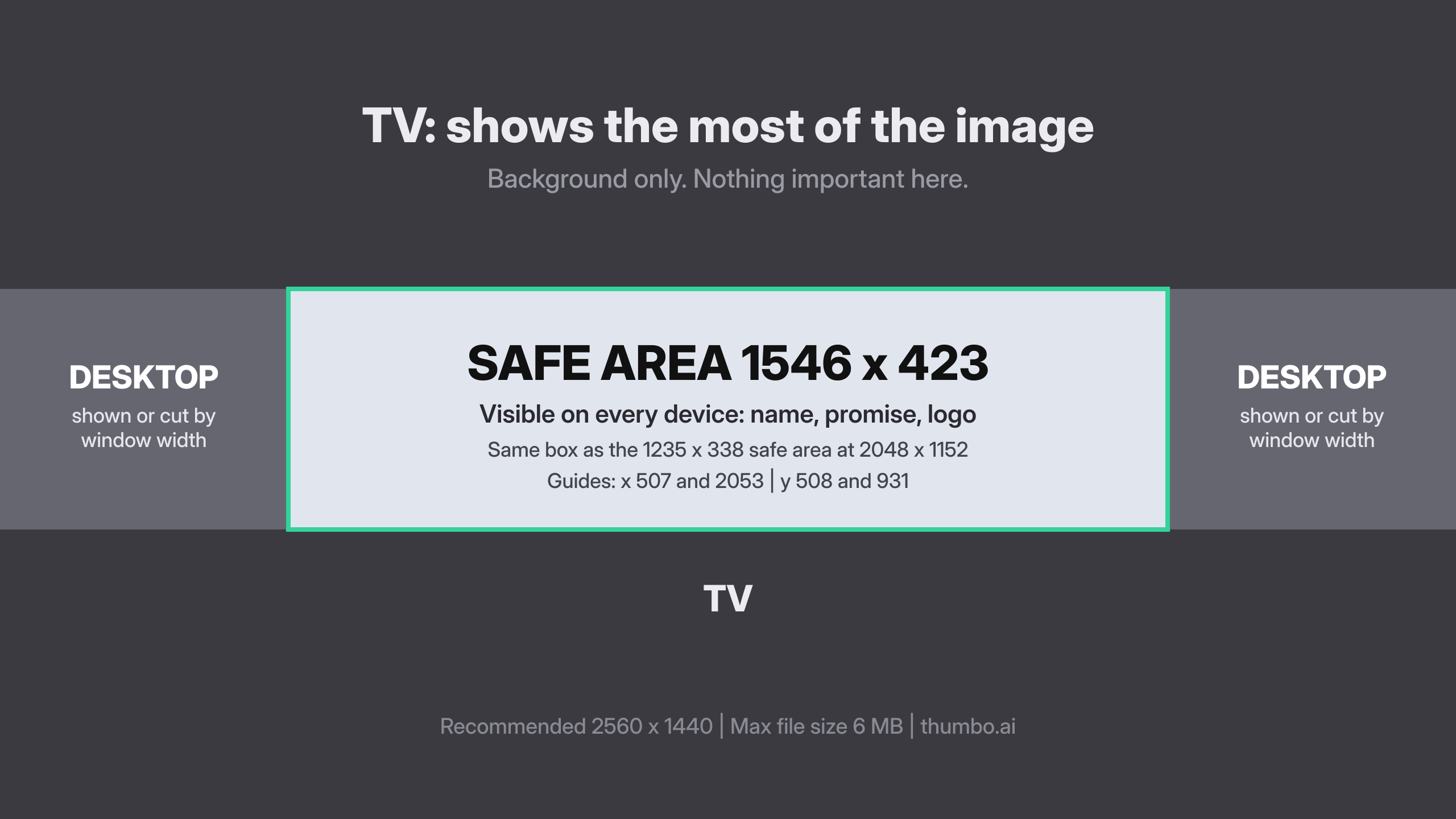
The template marks the zones from this guide: the area only some screens show, the desktop strip and the safe area, with the guide positions printed inside it.
- Format: PNG
- Size: 2560×1440
- Price: Free
Embed this tool
Run a design blog, a course or a creator community? Paste this on any page to show the banner preview tool. It runs in your visitor’s browser and keeps the attribution link.