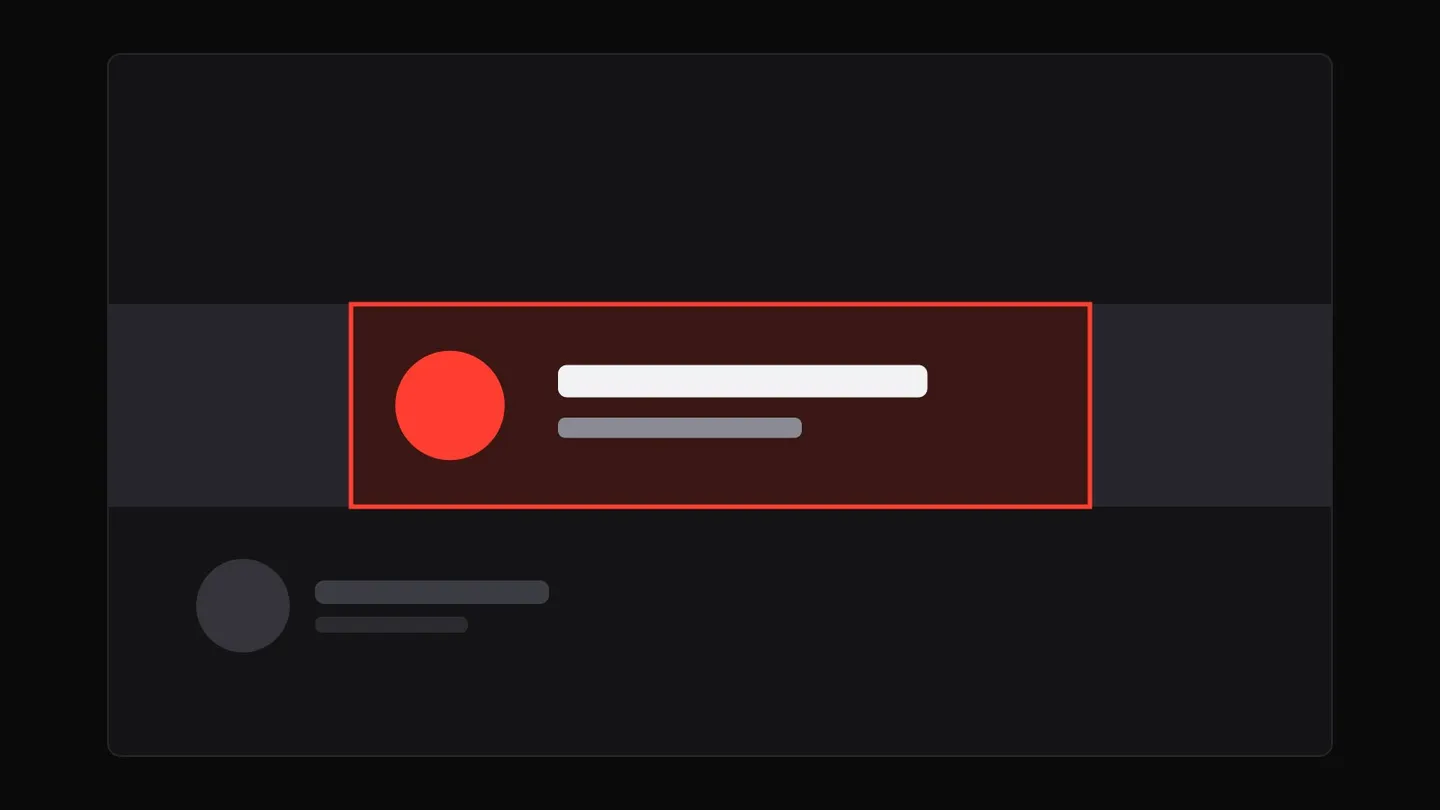
A YouTube banner template solves one problem: you cannot see where YouTube will crop your channel art while you are designing it. The same file is shown differently on a TV, a computer and a phone, and the safe area is the only part you can count on. A banner that looks balanced in your editor can lose its channel name on a laptop and its tagline on a phone.
This guide shows how to use a free template to design a banner that holds up on every device, what belongs in the safe area, what to do with the space around it, and how to make the banner, the profile picture and your thumbnails read as one brand. The exact numbers are on the YouTube banner size guide; here the focus is on the design.
Table of Contents
- What a Banner Template Gives You
- Get the Free Template
- Step 1: Set Up Your Canvas
- Step 2: Decide What Goes in the Safe Area
- Step 3: Build the Background for TV and Desktop
- Step 4: Test It at Phone Size
- One Brand: Banner, Profile Picture and Thumbnails
- FAQ
What a Banner Template Gives You
Per YouTube’s channel branding guidelines, the recommended banner is 2560 x 1440 pixels, the minimum upload is 2048 x 1152 pixels, and the file must be 6 MB or smaller. That is the easy part. The hard part is the safe area for text and logos, which YouTube puts at 1235 x 338 pixels at the 2048 x 1152 minimum. On a 2560 x 1440 canvas the same centered box is about 1544 x 423; the template uses 1546 x 423, the figure from YouTube’s earlier channel art guidelines.
A good template turns those numbers into something you can see. It marks the safe area, the strip that desktop shows and the area that mostly TV viewers see, so you design against the real crop from the first minute instead of discovering it after you upload. If you only need the dimensions, the YouTube banner size page has the whole spec in one table.
Get the Free Template
Download the free YouTube banner template (PNG, 2560 x 1440). It marks three zones:
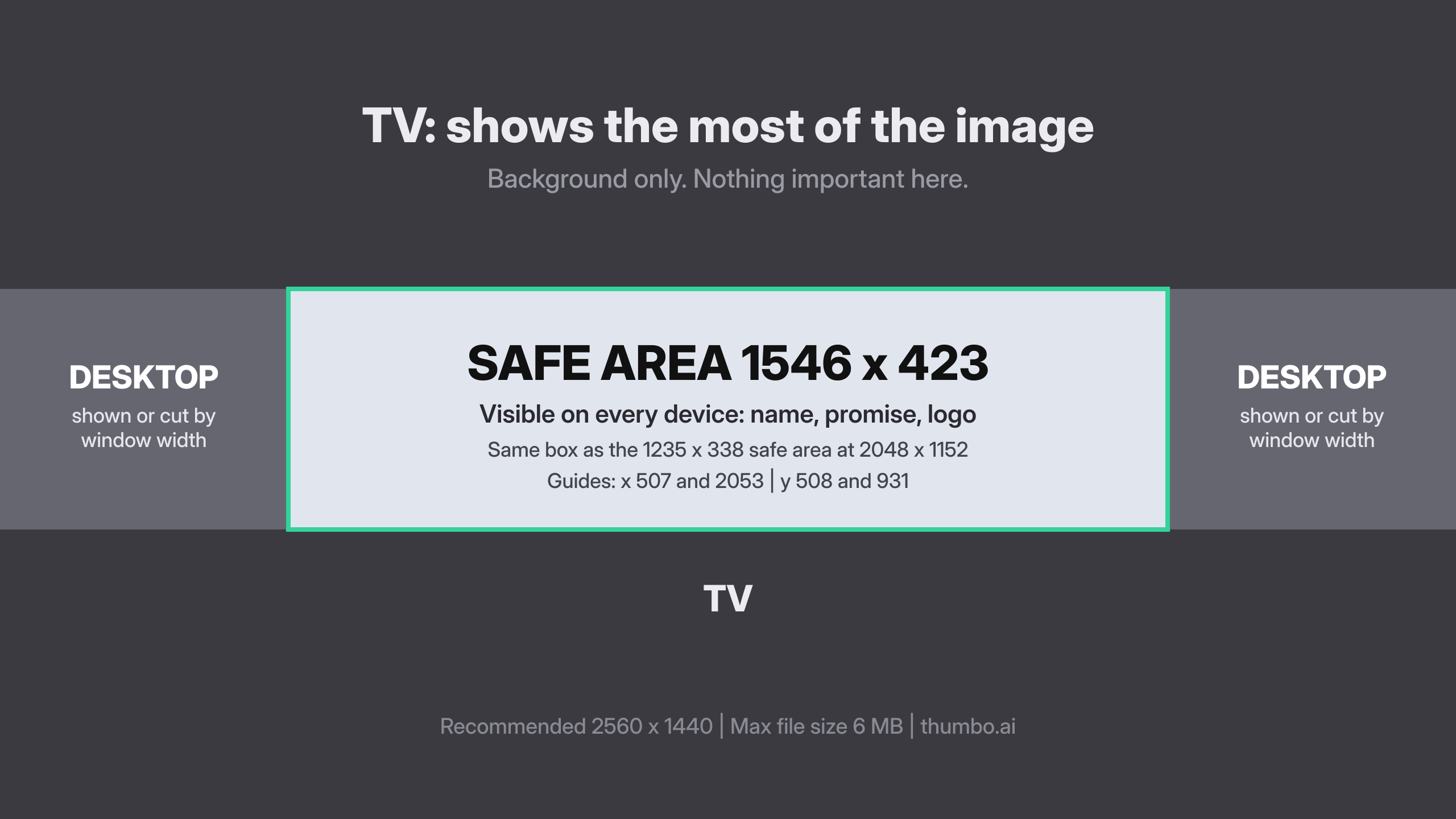
- Safe area, 1546 x 423: outlined in red, with the guide positions printed inside it (x 507 and 2053, y 508 and 931).
- Desktop strip, roughly 2560 x 423: the wide, short band desktop viewers see (per YouTube’s earlier guidelines), whose sides appear or get cropped depending on the browser window.
- TV: everything above and below the strip, which YouTube’s earlier guidelines say TVs show along with the rest of the image.

It works in any editor that supports layers: Photoshop, Photopea, Figma, Canva, Affinity, GIMP. Open it as the bottom layer, lock it, design on layers above it and hide the template layer before you export. If you forget, the labels end up in your banner.
Step 1: Set Up Your Canvas
Use a 2560 x 1440 px canvas, which is the recommended size and is sharp on TV. Do not start from a smaller size and scale up later: YouTube asks for at least 2048 x 1152, and a stretched small file looks soft on a large screen.
Place the template as the bottom layer and, if your editor supports guides, add them at the safe area edges: 507 and 2053 px vertically, 508 and 931 px horizontally. The guides let you snap elements into the box without eyeballing it. Plan to export a high-quality JPG so a detailed design stays under 6 MB. Skip added shadows, borders and frames; YouTube’s guidelines ask you to leave them out.
Step 2: Decide What Goes in the Safe Area
The safe area is about 60% of the banner’s width and only about 29% of its height. It is small, so it has room for one idea. Choose two or three elements from this list:
- Channel name or logo. If your avatar already shows the name, you can skip repeating it.
- A one-line promise. “Weekly budget recipes under $10” tells a visitor in two seconds whether to subscribe. A vague tagline wastes the strip.
- An upload schedule, if you keep one. “New video every Friday” turns a visit into a reason to come back.
- A face or a product shot, if the channel is built around one. Keep it inside the box, with the eyes comfortably away from the edges.
Leave breathing room inside the box: elements pressed against the outline look crowded once scaled to a phone. If you have more than three things in the safe area, cut one.
Do not put small print or long URLs here. Anything that needs squinting at on a phone does not belong in the box.
Step 3: Build the Background for TV and Desktop
Everything outside the safe area is background. Treat it as atmosphere, not information.
On the desktop strip, the areas to the left and right of the safe area appear or get cropped depending on the window width. Put texture, color, a gradient, part of a scene or a pattern there. Never place the second half of a sentence there.
On TV, YouTube’s earlier guidelines say the whole 2560 x 1440 image is displayed. That means the tall areas above and below the strip can be visible there, and a banner that is a thin band on a flat color will look empty. Extend your background naturally: a photo, a blurred scene or a color field that continues top and bottom, so TV viewers see a finished image, not a strip floating in space.
Step 4: Test It at Phone Size
YouTube does not publish exact phone or tablet sizes, and the safe area scaled to the width of the screen is the only space you fully control. So test the design the way a phone shows it.
- Zoom out in your editor until the safe area is about the width of a phone screen.
- Read the text without leaning in. If the tagline turns into a gray smudge, make the type bigger or cut words. Heavy sans-serif faces hold up best.
- Check contrast: light type on a dark area, dark on light, with no busy photo detail directly behind the letters.
- Hide the template, export, upload, then use the crop preview in YouTube Studio (Customization, then Profile) and look at it on your own phone too.
If anything is clipped, move it toward the center of the source file and upload again. To compare your result with a banner that works, you can download any channel’s banner in full size and lay it over the same template.
One Brand: Banner, Profile Picture and Thumbnails
The banner is seen on the channel page. The profile picture is seen next to every video, comment and search result. The thumbnails are seen in the feed. A visitor who lands on your channel from a video should recognize all three as the same place within a second, and that is mostly a matter of repeating a few choices.
Colors. Pick two or three and reuse them. A background color from the banner can become the accent on your thumbnails.
Type. Use the same heavy typeface, or a clearly related one, for the banner tagline and the thumbnail text. Our guide to the best fonts for YouTube thumbnails shows which faces survive small sizes, which is also what the banner needs on a phone.
Face or mark. If your thumbnails feature your face, put the same face (same expression style, same lighting) in the banner. The YouTube profile picture renders at 98 x 98 pixels as a circle, so crop the face for the circle first and use that crop as the anchor for the other two.
Composition. Thumbnails are small and a banner is wide, but the same rules apply to both: one clear subject, strong contrast, very few words. For the thumbnail spec, see the YouTube thumbnail size guide.
Consistency is also the cheapest way to look established. If you generate your thumbnails with Thumbo, the style and your face stay the same from one video to the next, which leaves the banner as the only piece you design by hand.
FAQ
Where can I get a free YouTube banner template?
The free 2560 x 1440 PNG template is linked and shown above. It marks the 1546 x 423 safe area, the desktop strip and the surrounding TV area. Use it as a bottom layer in any editor and hide it before you export.
What size should a YouTube banner template be?
2560 x 1440 pixels, 16:9. YouTube’s minimum upload is 2048 x 1152 pixels and the maximum file size is 6 MB. All the numbers, and what each device shows, are on the YouTube banner size page.
Where do I put my text on a YouTube banner?
Inside the centered safe area: 1546 x 423 on a 2560 x 1440 canvas, which is the same box as YouTube’s official 1235 x 338 at 2048 x 1152. Text outside it can be cropped on desktop or mobile.