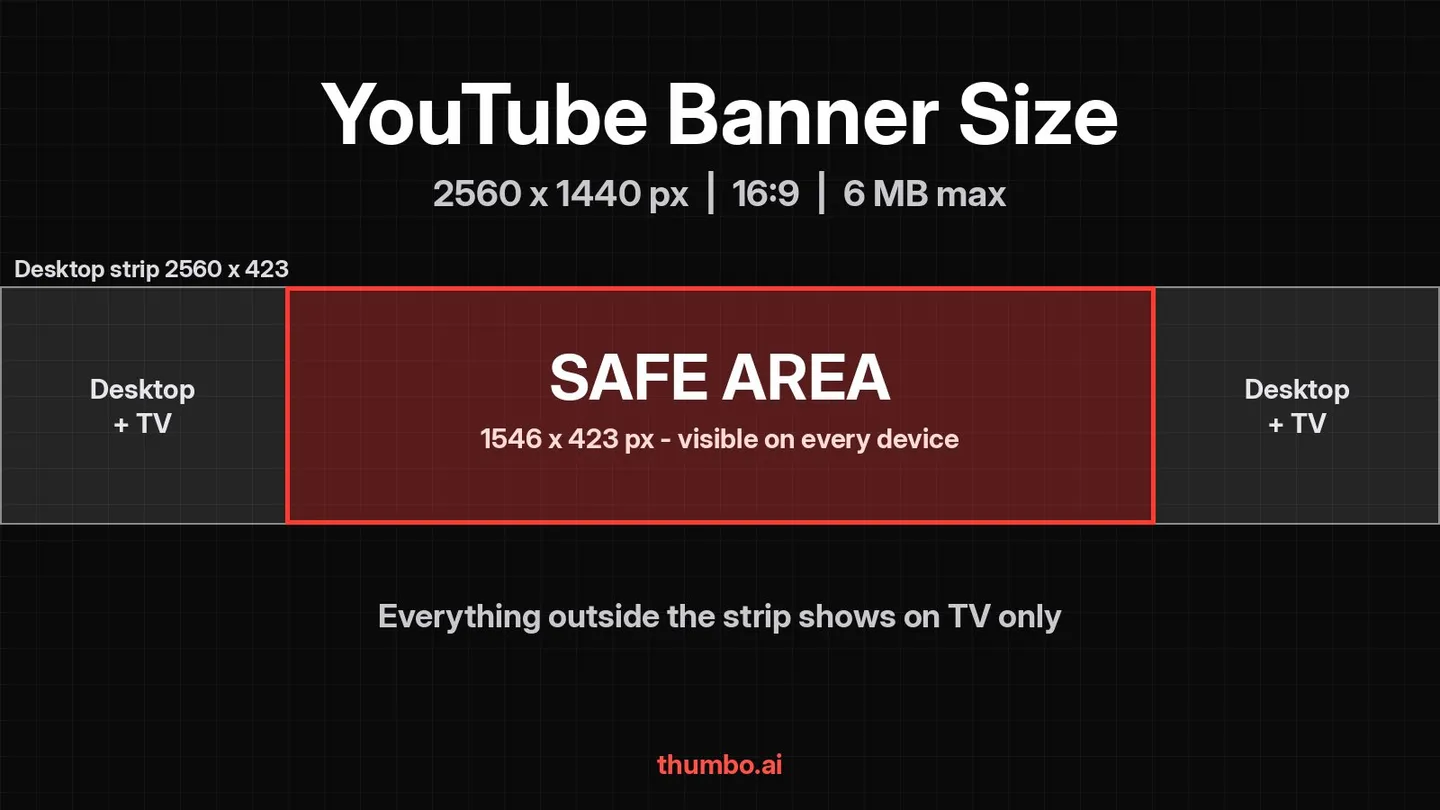
The YouTube banner size is 2560 x 1440 pixels at a 16:9 aspect ratio, with a minimum upload of 2048 x 1152 pixels and a file size of 6 MB or smaller (YouTube Help). The part that trips people up is not the canvas, it is the safe area: only a thin strip in the middle of the image is guaranteed to show on every screen, and anything outside it can be cut off.
The same file is used on TV, desktop and mobile, but each device shows a different slice of it. TVs show the whole 16:9 image. Desktop shows a wide, short strip. Phones show little more than the center. Design for the smallest slice first and the banner works everywhere.
This guide gives the exact numbers, the pixel coordinates of the safe area on a 2560 x 1440 canvas, a zone-by-zone layout plan, and a quick way to resize an existing image to banner size without opening a design app.
Table of Contents
- YouTube Banner Size at a Glance
- The Safe Area: Exact Size and Position
- How the Banner Crops on TV, Desktop and Mobile
- What to Put in Each Zone
- Banner vs Thumbnail vs Profile Picture Sizes
- How to Make a YouTube Banner Step by Step
- How to Resize an Existing Image to Banner Size
- How to Upload or Change Your YouTube Banner
- Common YouTube Banner Mistakes
- Make the Banner Match Your Thumbnails
- Banner Action Plan
- FAQ
YouTube Banner Size at a Glance
These are the numbers from YouTube’s channel branding guidelines, plus the scaled safe area most templates use.
| Spec | Value | Notes |
|---|---|---|
| Recommended size | 2560 x 1440 px | YouTube calls this out “especially for TV” |
| Minimum upload size | 2048 x 1152 px | YouTube’s stated minimum for upload |
| Aspect ratio | 16:9 | Same shape as a standard video frame |
| Safe area at minimum size | 1235 x 338 px | Text and logos that must never be cropped |
| Safe area at 2560 x 1440 | 1546 x 423 px | The same proportion, scaled up (see below) |
| Maximum file size | 6 MB | JPG keeps a busy design well under it |
| Extras | No shadows, borders or frames | YouTube asks for no added “file embellishments” |
If you remember one line: 2560 x 1440 canvas, everything important inside the central 1546 x 423, file under 6 MB.
The Safe Area: Exact Size and Position
The safe area is a centered rectangle that stays visible on every device. On a 2560 x 1440 canvas it measures 1546 x 423 pixels, which works out to:
- Left edge: 507 px from the left side
- Right edge: 2053 px from the left side
- Top edge: about 508 px from the top
- Bottom edge: about 932 px from the top
In relative terms, the safe area is about 60% of the banner’s width and only about 29% of its height. That second number is the one that surprises people. Roughly seven tenths of the vertical space is decoration that most viewers will never see.
To set it up in any editor, add two vertical guides at 507 and 2053 px and two horizontal guides at 508 and 932 px. Every word, logo and face that matters goes inside that box.
Why two safe-area numbers circulate
Search results quote both 1546 x 423 and 1235 x 338, and some guides mix them into “1546 x 338”, which matches neither. Here is where each comes from:
- 1235 x 338 is the current official figure, and YouTube defines it “at the minimum dimension”, meaning on a 2048 x 1152 canvas (YouTube Help).
- 1546 x 423 is what the older version of the same help article listed as the “minimum safe area for text and logos” alongside the 2560 x 1440 recommendation (archived YouTube Help, 2019).
They describe the same proportion. Scale 1235 x 338 up by 1.25 (2048 to 2560) and you get about 1544 x 423. So use 1546 x 423 on a 2560 x 1440 canvas and 1235 x 338 on a 2048 x 1152 canvas. The real mistake is mixing one canvas with the other’s safe area.
How the Banner Crops on TV, Desktop and Mobile
YouTube’s help page says it plainly: “The same banner image is used across computer, mobile, and TV displays, but it shows differently depending on your device” (YouTube Help). The older version of the page described the crops in more detail (archived YouTube Help, 2019):
- TV: the whole 16:9 image is displayed as the background of the channel page.
- Desktop: at most a full-width strip of 2560 x 423 px shows. The areas to each side of the safe area appear or get cropped depending on the browser window size.
- Mobile: the safe area is scaled down to the width of the phone screen, which varies by device. In practice, phones show little beyond the safe area itself.
| Zone on a 2560 x 1440 canvas | Size | Who sees it |
|---|---|---|
| Full image | 2560 x 1440 | TV viewers only |
| Desktop strip | 2560 x 423 (centered vertically) | Desktop viewers, sides depending on window width |
| Safe area | 1546 x 423 (centered) | Everyone |
Exact pixel values for every phone and tablet change with screen sizes and app updates, so the reliable approach is the one YouTube’s own guidance implies: treat the safe area as the only space you control, and make everything outside it look fine whether it shows or not.
What to Put in Each Zone
Think of the banner as three nested layers, each with a different job.
Safe area (1546 x 423): the message
This is the only place for anything a viewer must read or recognize:
- Channel name or logo
- A one-line promise (“Weekly budget recipes under $10”, “Excel tutorials for finance teams”)
- Upload schedule, if you keep one
- A face or product shot, if the channel is built around one
Keep it to two or three elements. The strip is short, so text has to be large enough to read when the banner is scaled down on a phone.
Desktop side zones (507 px on each side): the extension
These areas show on wide desktop windows. Use them for things that are nice to see but harmless to lose: a continuation of the background, texture, pattern, a gradient or soft imagery. Never put a social handle or a second line of text here, because a narrower window will cut it in half.
TV area (above and below the strip): the backdrop
On TV the full 2560 x 1440 image fills the screen behind the channel page. Fill it with a background that extends the design naturally, such as a photo, color field or blurred scene, so TV viewers do not see an awkward band of empty color. Nothing essential goes here.
Banner vs Thumbnail vs Profile Picture Sizes
A channel maintains several images with different specs. Mixing them up is the most common reason for a blurry or rejected upload.
| Image | Recommended size | Minimum | Aspect ratio | Max file size |
|---|---|---|---|---|
| Channel banner | 2560 x 1440 | 2048 x 1152 | 16:9 | 6 MB |
| Video thumbnail | 3840 x 2160 | 640 px wide | 16:9 | 2 MB mobile, 50 MB desktop |
| Shorts thumbnail | 2160 x 3840 | 640 px tall | 9:16 | 50 MB (desktop upload only) |
| Profile picture | Square image, renders at 98 x 98 | - | 1:1 | 15 MB |
| Video watermark | Square image | 150 x 150 | 1:1 | Under 1 MB |
Sources: banner, profile picture and watermark specs from YouTube’s branding guidelines; thumbnail specs from YouTube’s thumbnail help page, which also notes that custom Shorts thumbnails can currently only be added in YouTube Studio on a computer. The profile picture accepts JPG, GIF, BMP or PNG files, with no animated GIFs. To look at another channel’s avatar at full size, you can download any channel’s profile picture.
The banner and the video thumbnail share the 16:9 shape, but that is where the similarity ends. A thumbnail is seen whole and small, so the entire frame is the canvas. A banner is seen wide and cropped, so only the middle strip is the canvas. For a deeper look at video and thumbnail dimensions, see the YouTube width and height guide, and for every thumbnail spec on one page, the YouTube thumbnail size guide.
How to Make a YouTube Banner Step by Step
Any editor that supports custom canvas sizes and guides will do. The process is the same in each.
1. Set up the canvas
Create a new document at 2560 x 1440 px. Working at the recommended size gives TV viewers a sharp image and leaves room to crop. Add guides at 507 and 2053 px (vertical) and 508 and 932 px (horizontal) to mark the safe area.
2. Lay down the background
Fill the full canvas first: photo, gradient, pattern or color. Check that it still looks intentional when you crop it to the 2560 x 423 desktop strip and to the 1546 x 423 safe area. A background with its most interesting detail in the center crops well; one with the detail in a corner does not.
3. Design the safe area
Place the channel name, the one-line promise and any key visual inside the guides. Leave some breathing room inside the box rather than pushing text to its edges, since scaling on small screens makes tight layouts feel cramped.
4. Check readability at small size
Zoom out until the safe area is about the width of a phone screen. If the tagline turns into a gray smudge, cut words or increase the type size. Heavy sans-serif faces hold up best; the best fonts for YouTube thumbnails guide covers which typefaces survive small sizes.
5. Export
Export as JPG at high quality and confirm the file is under 6 MB. A detailed photographic banner at 2560 x 1440 usually lands well below that as a JPG. Skip shadows, borders and frames around the image, which YouTube’s guidelines specifically ask you to leave out.
How to Resize an Existing Image to Banner Size
If you already have artwork or a photo, you do not need to rebuild it. The free YouTube image resizer has a Channel banner preset that outputs exactly 2560 x 1440, and the image never leaves your browser.
- Drop the image into the resizer and choose the Channel banner size.
- Pick Crop to fill to fill the frame, then use the slider to move the crop so the subject sits in the middle of the image, where the safe area is.
- If cropping would cut off too much, pick Fit (blurred edges) instead. The whole image stays visible and the empty space is filled with a blurred copy, which works well for the TV area.
- Choose JPG and download.
If a banner file somehow lands over the limit, the image compressor squeezes it down to 2 MB at the highest quality that fits, comfortably under the 6 MB banner cap. Check that the result is still at least 2048 x 1152 before uploading.
How to Upload or Change Your YouTube Banner
On a computer, the steps from YouTube Help are:
- Sign in to YouTube Studio.
- From the left menu, select Customization, then Profile.
- For the banner image, click Change and select your image.
- Select a preview and adjust the crop if needed, then click Done.
- Click Publish.
The crop preview is the last chance to catch problems. Look at each device preview and confirm the channel name and tagline are fully visible in the smallest one. If anything is clipped, move it toward the center in the source file and upload again rather than shrinking the whole image inside the crop tool.
If you want to study how another channel handled its banner, you can download any channel’s banner in full size and check the safe area against your own design.
Official Artist Channels work slightly differently: their banner only applies on computer and mobile, and the TV and YouTube Music banner is set separately from the Profile page in YouTube Studio.
Common YouTube Banner Mistakes
| Mistake | What happens | Fix |
|---|---|---|
| Text placed near the top or bottom | Invisible on desktop and mobile, only TV viewers see it | Keep all text between 508 and 932 px vertically |
| Social handles at the far left or right | Cut off on narrower windows and phones | Move them into the safe area or drop them |
| Using 1546 x 338 as the safe area | Misaligned layout that matches no device | Use 1546 x 423 on 2560 x 1440 |
| Uploading below 2048 x 1152 | Below YouTube’s minimum for upload | Rebuild at 2560 x 1440 or resize from a larger source |
| Upscaling a small image | Soft, blurry banner on TV | Start from a high-resolution source |
| Shadows, borders or frames around the image | Looks off once cropped; YouTube advises against it | Let the background run to the edges |
| Too many elements | Unreadable on a phone | Name, promise, one visual |
| File over 6 MB | Over YouTube’s file size limit | Export as JPG or compress |
Make the Banner Match Your Thumbnails
The banner and the thumbnails are seen by the same people: thumbnails earn the click, and the channel page is where a curious viewer decides whether the channel is worth following. If the banner and the thumbnails share colors, typefaces and tone, the channel reads as one consistent brand instead of a pile of unrelated uploads.
A simple system:
- Two or three brand colors used in both the banner and every thumbnail. The best colors for YouTube thumbnails guide explains which combinations stand out in the feed.
- One headline typeface across the banner tagline and thumbnail text.
- The same promise. If the banner says “Budget recipes under $10”, the thumbnails should show budget recipes, not a random mix.
Once the banner sets the look, thumbnails are the part you repeat every week. With Thumbo’s AI thumbnail generator you type the video topic, pick a style, and get a 16:9 thumbnail; it can also match an existing channel’s style, which helps keep every new cover consistent with the banner.
Banner Action Plan
- Create a 2560 x 1440 canvas with guides at 507/2053 px and 508/932 px.
- Fill the whole canvas with a background whose interesting part is in the center.
- Put the channel name, a one-line promise and one visual inside the safe area. Nothing else.
- Shrink the design to phone width and cut anything that stops being readable.
- Export as JPG under 6 MB, with no borders, shadows or frames.
- Upload in YouTube Studio under Customization, then Profile, and check every device preview before publishing.
- Match the banner’s colors and typeface in your next thumbnails.
FAQ
What is the YouTube banner size in 2026?
YouTube recommends 2560 x 1440 pixels at a 16:9 aspect ratio, with a minimum of 2048 x 1152 pixels and a file size of 6 MB or smaller.
What is the safe area for a YouTube banner?
On a 2560 x 1440 banner, the safe area is the central 1546 x 423 pixels, running from 507 to 2053 px horizontally and about 508 to 932 px vertically. On a 2048 x 1152 banner, YouTube lists it as 1235 x 338 pixels. Text and logos placed inside it are visible on every device.
Why does my YouTube banner look cropped on mobile?
The same image is used on every device, but on phones the safe area is scaled to the width of the screen, so little beyond it shows. Anything outside the center, especially text near the edges or at the top and bottom, gets cut off. Move important elements into the safe area and re-upload.
Can I use a 1920 x 1080 image as a banner?
Not as is. 1920 x 1080 is below YouTube’s 2048 x 1152 minimum for upload. Resize it to 2560 x 1440 first, ideally from a larger source so the result stays sharp on TV.
What file format should a YouTube banner be?
JPG is the practical choice for photographic banners because it keeps a 2560 x 1440 image well under the 6 MB limit. PNG works for flat graphics with few colors, as long as the file stays under 6 MB.
Is the YouTube banner the same as channel art?
Yes. “Channel art” was YouTube’s older name for the banner image at the top of a channel page. The specs and the safe area are the same.