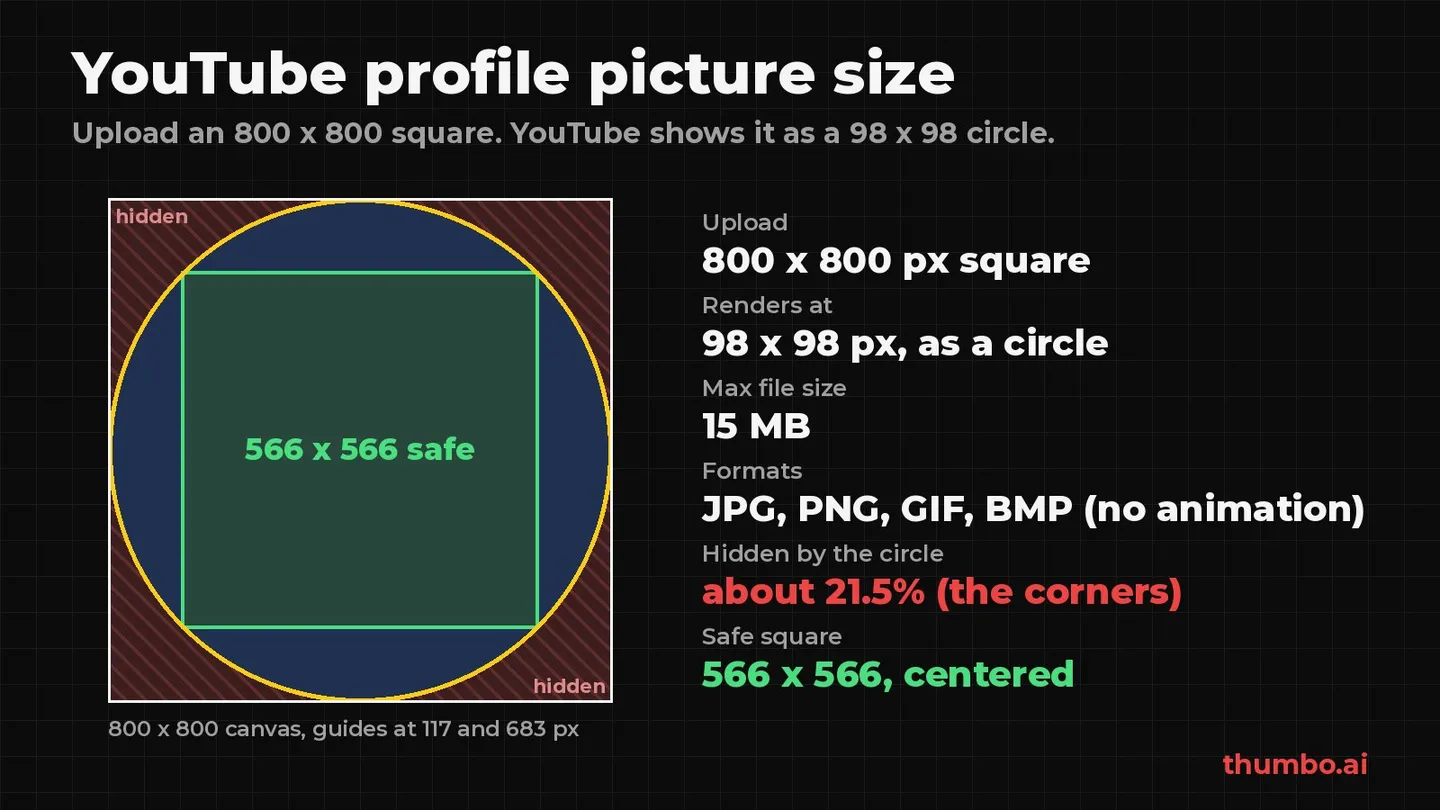
The YouTube profile picture size to upload is a square image of 800 x 800 pixels. YouTube’s current rules are short: the file must be a JPG, GIF, BMP or PNG (no animated GIFs), no larger than 15 MB, and it is an image that renders at 98 x 98 pixels (YouTube Help). YouTube then shows it as a circle, so the corners of your square never appear.
That leaves two practical questions most guides skip: why upload 800 pixels for something shown at 98, and how much of the square is actually safe once the circle crop is applied. This guide answers both with exact numbers, then covers how to upload or change the picture on a computer and a phone, what works at tiny sizes, and how to keep the avatar consistent with your banner and thumbnails.
Table of Contents
- YouTube Profile Picture Size at a Glance
- Where the 800 x 800 Number Comes From
- Why Upload 800 Pixels for a 98 Pixel Circle
- The Circle Crop: Safe Area in Pixels
- Profile Picture vs Banner vs Thumbnail vs Watermark
- How to Change Your YouTube Profile Picture
- How to Resize an Image to a Square Profile Picture
- What Makes a Profile Picture Work at 98 Pixels
- Common Profile Picture Mistakes
- Match the Profile Picture to Your Banner and Thumbnails
- Profile Picture Action Plan
- FAQ
YouTube Profile Picture Size at a Glance
| Spec | Value | Source |
|---|---|---|
| Recommended upload | 800 x 800 px, square | YouTube’s older channel icon specs (see below) |
| Display size | Renders at 98 x 98 px | YouTube Help |
| Shape on screen | Circle | The square is cropped to a circle when shown |
| Aspect ratio | 1:1 | A non-square upload has to be cropped to a square |
| Maximum file size | 15 MB | YouTube Help |
| File formats | JPG, GIF, BMP or PNG, no animated GIFs | YouTube Help |
| Content rules | Must follow the Community Guidelines | YouTube Help |
If you remember one line: 800 x 800 square, everything important inside the central 566 x 566, JPG or PNG under 15 MB.
The picture is not a small detail. YouTube describes it as “the image shown to viewers on your channel, videos, and publicly attributable actions across YouTube” (YouTube Help). It sits next to the title of every video in the feed, beside every comment you leave and at the top of your channel page.
Where the 800 x 800 Number Comes From
YouTube’s current help page lists the format, the 15 MB limit and the 98 x 98 render size, but no upload resolution. The 800 x 800 figure comes from the earlier version of YouTube’s own channel icon help page, which listed “800 X 800 px image (recommended)” and “Square or round image that renders at 98 X 98 px” side by side (archived YouTube Help, 2019). The render size is the same today, and nothing in the current guidelines replaces the recommendation, which is why it is still the standard number.
Two things changed since then. The page used to say the file had to be square or round; the current page only lists formats and file size. And YouTube now lets you pick a ready-made illustration and change its preset colors instead of uploading an image at all (YouTube Help).
If a guide quotes a different file size limit, go by YouTube’s own page: the limit it lists today is 15 MB.
Why Upload 800 Pixels for a 98 Pixel Circle
98 x 98 is the size in layout pixels, not the number of physical pixels a screen uses to draw it. Most phones and many laptops have high-density screens that draw each layout pixel with two or three physical pixels, so a 98 pixel circle is drawn with 196 or 294 physical pixels across. An image uploaded at exactly 98 x 98 has to be stretched to fill that space and looks soft.
An 800 x 800 source covers that with room to spare and leaves space for the crop step during upload, where you can zoom in and lose resolution. Going much larger brings little extra: a 3000 x 3000 file looks the same in a 98 pixel circle. Any square between 800 and about 3000 pixels is fine; below 800 the risk of a blurry avatar goes up.
| Upload size | Result |
|---|---|
| 98 x 98 | Matches the layout size but looks soft on high-density screens |
| 400 x 400 | Usually fine at feed size, little room for cropping |
| 800 x 800 | Sharp everywhere, room to crop: the standard choice |
| 3000 x 3000 | Works, no visible gain, larger file |
| Non-square (for example 1920 x 1080) | Must be cropped to a square during upload, easy to cut off the subject |
The Circle Crop: Safe Area in Pixels
On an 800 x 800 square, the visible circle is 800 pixels in diameter and touches the middle of each edge. Everything in the four corners is hidden. Basic geometry gives the exact numbers:
- Hidden area: 1 minus pi/4, or about 21.5% of the square, is outside the circle.
- Largest safe square: the biggest square that fits fully inside the circle is the diameter divided by the square root of 2, which is about 566 x 566 pixels, centered. It runs from 117 to 683 px on both axes.
- Comfort margin: text or a logo that touches the circle’s edge looks cramped once it is shrunk to 98 pixels. Keeping the key element inside a centered circle of about 640 pixels (80% of the width) leaves a visible ring of breathing room.
Three zones on an 800 x 800 canvas
| Zone | Size on an 800 x 800 canvas | What goes there |
|---|---|---|
| Corners outside the circle | About 21.5% of the image | Background only, never visible |
| Ring between the 566 px square and the circle | Edges of the circle | Background color, the outer part of a face or shape |
| Central 566 x 566 square | 117 to 683 px on both axes | Face, logo mark, initials |
To set this up in any editor, create an 800 x 800 canvas, draw a circle the full size of the canvas as a guide, and add guides at 117 and 683 px. Fill the whole square with background color, so the circle never shows an empty or transparent edge around your subject.
Profile Picture vs Banner vs Thumbnail vs Watermark
A channel maintains several images, and each one has its own shape and limit. Mixing them up is the usual reason for a rejected or cropped upload.
| Image | Recommended size | Minimum | Aspect ratio | Max file size |
|---|---|---|---|---|
| Profile picture | 800 x 800, renders at 98 x 98 | - | 1:1, shown as a circle | 15 MB |
| Channel banner | 2560 x 1440 | 2048 x 1152 | 16:9 | 6 MB |
| Video watermark | Square image | 150 x 150 | 1:1 | Under 1 MB |
| Video thumbnail | 3840 x 2160 | 640 px wide | 16:9 | 2 MB mobile, 50 MB desktop |
Sources: profile picture, banner and watermark specs from YouTube’s branding guidelines, thumbnail specs from YouTube’s thumbnail help page. The banner has its own safe area and crop rules, explained in the YouTube banner size guide. For every thumbnail spec on one page, see the YouTube thumbnail size guide.
The watermark is easy to confuse with the profile picture because both are small squares, but it is a separate upload that shows over your videos. Reusing the profile picture file as a watermark is fine as long as the file is under 1 MB.
How to Change Your YouTube Profile Picture
YouTube documents three ways in, all from the same help page (the page has a separate version for computer, Android and iPhone or iPad).
On a computer (YouTube Studio)
- Sign in to YouTube Studio.
- From the left menu, select Customization, then Profile.
- Click Change and select an illustration or an image from your computer.
- Change the preset colors and crop of the illustration, or the size of your uploaded image, then click Done.
- Click Publish.
YouTube notes that “it may take a few minutes for your profile picture to update across YouTube”, so an old avatar showing for a short while after publishing is normal. The crop step can also be done with the keyboard: select a corner or the whole crop square and move it with the arrow keys.
In the YouTube app (Android, iPhone and iPad)
- Tap your profile picture.
- Tap Your channel on Android, or View channel on iPhone and iPad.
- Tap Edit, then tap your profile picture.
- Take a photo, choose a photo to upload, or select an illustration.
- Tap Save.
In the YouTube Studio app
- Tap your profile picture.
- Tap Edit profile, then tap your profile picture.
- Take a photo or choose a photo to upload (on Android you can also select an illustration).
- Tap Save.
Before you upload, check the file once more: square, at least 800 x 800, under 15 MB, and a static image. An animated GIF is not accepted as a profile picture.
How to Resize an Image to a Square Profile Picture
If your photo or logo is a wide or tall image, crop it to a square before uploading so you decide what survives, not the crop box on a phone screen. The free YouTube image resizer has a Square / album cover preset that exports a 3000 x 3000 square in your browser, and the image never leaves your device.
- Drop the image into the resizer and choose Square / album cover.
- Pick Crop to fill and use the slider to move the square so the face or logo sits in the middle.
- Pick Fit (blurred edges) instead if the whole image must stay visible, for example a wide logo.
- Download as JPG and upload it. A 3000 x 3000 square is well above the 800 x 800 recommendation, and YouTube scales it down.
If a file is unexpectedly heavy, for example a large PNG, the image compressor brings it under 2 MB at the highest quality that fits, far below the 15 MB limit.
To compare your avatar with what other channels in your niche use, the YouTube profile picture downloader saves any channel’s current picture at its original size, 800 x 800 or 176 x 176. It is useful for research and for collab graphics where a guest channel’s avatar is needed, not for copying someone else’s look (more on that below). If the guest is on TikTok, the TikTok profile picture downloader does the same for a TikTok username, and our TikTok pfp guide covers its sizes.
What Makes a Profile Picture Work at 98 Pixels
At 98 pixels, and smaller next to comments, a profile picture is recognized by shape and color more than by detail. What holds up:
- One subject. A face, a logo mark or initials. Not a face plus a logo plus a slogan.
- A close crop on faces. Head and shoulders fill the circle; a full-body shot turns into a tiny figure.
- Strong contrast with both themes. YouTube is used in light and dark mode, so a picture that relies on a white or black background can blend into one of them. A solid colored background works in both.
- No small text. A channel name in a 98 pixel circle is unreadable. If you want letters, use one to three bold initials.
- The same subject as your channel promise. A cooking channel with a pan icon or the cook’s face tells a viewer in the feed what to expect; an abstract pattern does not.
| Channel type | Profile picture that works | Why |
|---|---|---|
| Personal or on-camera channel | Close crop of your face, plain colored background | The same face appears in the videos and often the thumbnails |
| Faceless or brand channel | Simple logo mark or monogram, two colors | Readable as a shape at 98 px |
| Business or product channel | The same logo as on your website, simplified for small sizes | Viewers recognize the brand across platforms |
| Podcast or show | The show’s cover art simplified to its central element | Full cover art with text is too detailed for a circle |
For faceless channels, the faceless YouTube thumbnail ideas page shows how the same logo-and-color approach carries into thumbnails.
Common Profile Picture Mistakes
| Mistake | What happens | Fix |
|---|---|---|
| Uploading a non-square image | The crop box cuts off part of the face or logo | Crop to a square before uploading |
| Logo or text touching the edges | Cut off by the circle crop | Keep it inside the central 566 x 566 square |
| Tiny source image | Soft or pixelated avatar on high-density screens | Start from at least 800 x 800 |
| Full channel name as text | Unreadable at 98 px | Use a mark or one to three initials |
| Animated GIF | Not accepted for profile pictures | Use a static JPG or PNG |
| File over 15 MB | Over YouTube’s limit | Export as JPG or compress |
| Transparent PNG with a dark logo | Can disappear against the dark theme | Put the logo on a solid background |
| Copying another channel’s avatar | Can count as impersonation | Use your own photo or mark |
The last one is a policy issue, not a design one. YouTube’s impersonation policy lists “copying their profile pictures, banners, or specific color schemes” as a way of impersonating an existing creator or channel, and adds that “the channel does not have to be 100% identical, as long as the intent is clear to copy the other channel” (YouTube Help). Fan channels are expected to say so in the channel name or handle. Your profile picture also has to follow the Community Guidelines like any other content.
Match the Profile Picture to Your Banner and Thumbnails
In the feed, the profile picture appears right below the thumbnail of every video. The two are seen together with every upload, so when they share colors and style the channel becomes recognizable at a glance, and when they clash every upload looks like it came from a different channel.
A simple system that ties the three images together:
- Two or three brand colors, used as the avatar background, in the banner and in every thumbnail. The best colors for YouTube thumbnails guide covers which pairs stand out in the feed.
- The same face or mark. If your face is the avatar, the same face in thumbnails builds recognition; the guide to using your face in YouTube thumbnails covers expressions and lighting.
- Change them together. A rebrand that updates the avatar but leaves old-style thumbnails and an old banner sends mixed signals. If the name changes as well, the guide to changing your channel name on YouTube explains the rules for names and handles.
The profile picture is a one-time job; thumbnails are the part you repeat with every upload. Thumbo’s AI thumbnail generator creates 16:9 thumbnails from a video topic and can follow your channel’s existing style, which keeps every new cover in line with the colors your avatar and banner already use.
Profile Picture Action Plan
- Pick one subject: your face for an on-camera channel, a simple mark or initials for everything else.
- Create an 800 x 800 canvas (or crop a larger image to a square) and fill it with a solid background color.
- Keep the subject inside the central 566 x 566 square, guides at 117 and 683 px.
- Shrink the image to about 100 pixels wide and check it on both a white and a black background.
- Export as JPG or PNG under 15 MB, no animation.
- Upload in YouTube Studio under Customization, then Profile, adjust the crop and click Publish.
- Check how it looks next to your latest thumbnails in the feed, and align colors if they clash.
FAQ
What is the best YouTube profile picture size?
Upload a square image of 800 x 800 pixels. YouTube renders the profile picture at 98 x 98 pixels and crops it to a circle, and 800 x 800 gives enough resolution for high-density screens and the crop step. Larger squares also work.
What is the maximum file size for a YouTube profile picture?
15 MB. YouTube’s guidelines say the image size should not exceed 15 MB and the file must be a JPG, GIF, BMP or PNG, with no animated GIFs.
Is a YouTube profile picture square or round?
You upload a square, and YouTube shows it as a circle. The four corners are hidden, which is about 21.5% of the image, so keep faces, logos and letters inside the central 566 x 566 pixels of an 800 x 800 square.
Why is my YouTube profile picture blurry?
Usually because the source image was too small and got stretched, or because a small part of a larger photo was zoomed in during the crop step. Start from a square of at least 800 x 800 pixels with the subject already centered, and avoid fine detail that turns to mush at 98 pixels.
Why is my new profile picture not showing yet?
YouTube says it may take a few minutes for a new profile picture to update across YouTube. If the old picture is still showing after that, refresh the page or check in a private browser window, since your browser may be showing a cached copy.
Can I change my YouTube profile picture on my phone?
Yes. In the YouTube app, tap your profile picture, tap Your channel (Android) or View channel (iPhone and iPad), tap Edit and then your profile picture, choose a photo or illustration and tap Save. The YouTube Studio app has the same option under Edit profile.