
The popular advice says one tool is the best AI for YouTube thumbnails. That’s the wrong starting point. A creator who publishes from a phone, a channel team pulling frames from edited videos, and a high-volume operator who needs consistent faces have different bottlenecks, so the strongest choice depends on the workflow rather than the longest feature list.
This comparison ranks ten tools by automation, editing control, video integration, mobile creation, typography, brand consistency, scalability, and published pricing. The practical test is straightforward: create the same thumbnail concept in each shortlisted tool, inspect the first output at small size, make one revision, then assess export friction and how easily the design can be reused.
That matters because thumbnail performance depends on fast comprehension, not decorative complexity. YouTube defines CTR as clicks divided by impressions, and a good rate generally falls between 4% and 10%, with 4% to 6% as the practical middle ground and anything above 7% counting as strong (see what counts as a good click-through rate on YouTube). Thumbnail analyses consistently associate a single dominant face, a clear expression, and short high-contrast text with results at the stronger end of that range. The right tool should therefore help you make the important elements clearer, not merely make the image more elaborate.
Table of Contents
- 1. Thumbo AI
- 2. Canva
- 3. Adobe Express
- 4. Picmaker
- 5. Kapwing
- 6. Fotor
- 7. Picsart
- 8. Snappa
- 9. VistaCreate
- 10. Kittl
- Top 10 AI Tools for YouTube Thumbnails, Comparison
- Choose the Tool That Fits Your Publishing Rhythm
1. Thumbo AI
Best for: creators who want fast, automated, repeatable YouTube thumbnail production.
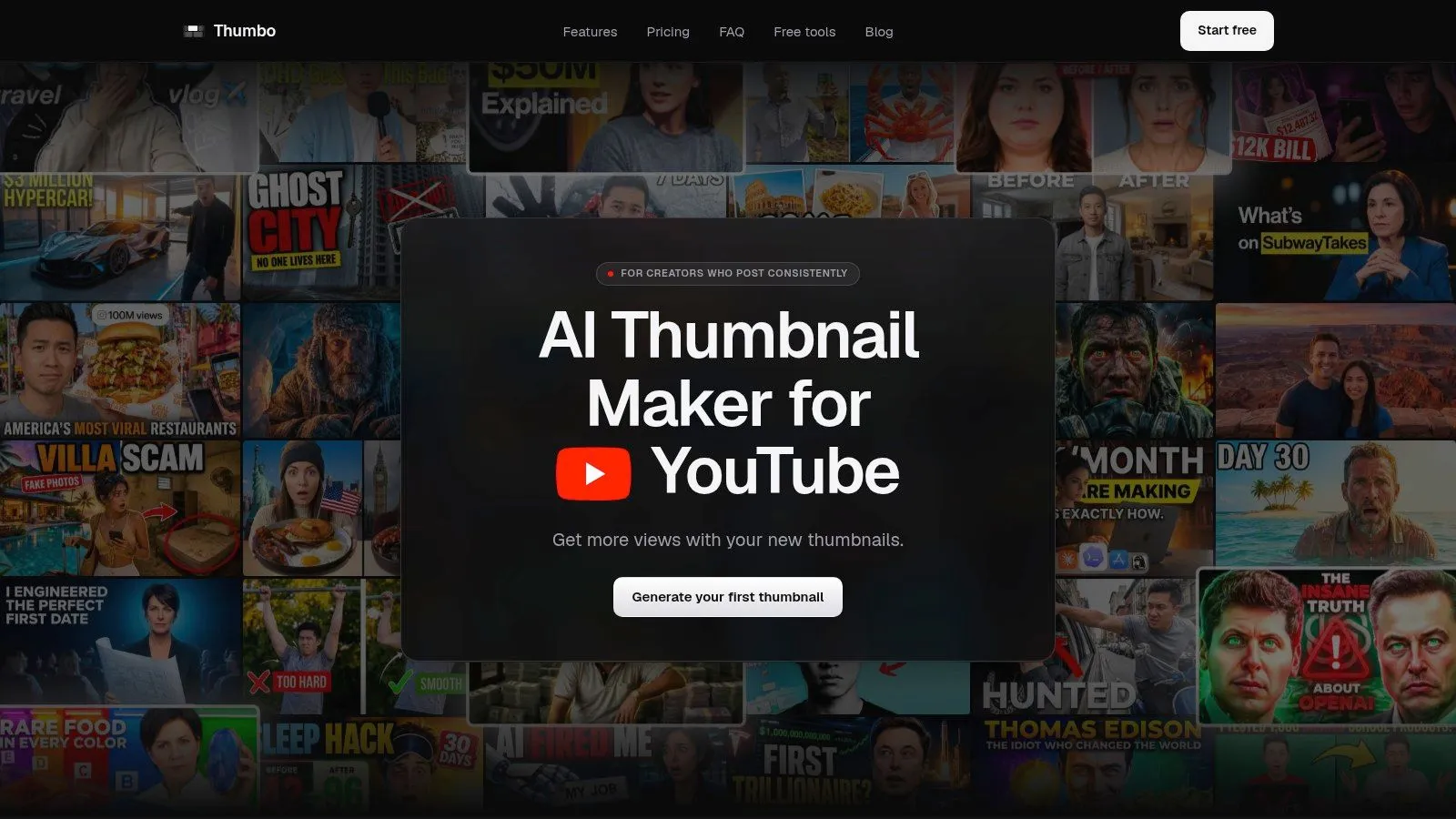
Thumbo AI is the most workflow-specific option in this list. Instead of starting with a broad design canvas, you can begin with a video idea, choose from 50+ niche-oriented Style Packs, or let the system read your video and generate a styled thumbnail. That makes it a strong fit for creators who care more about getting from concept to publishable asset quickly than about manually controlling every layer.
Its standout advantage is consistency. You can paste a channel URL to match its visual direction, then upload three photos to lock in a recurring persona. Plain-language edits such as asking the system to make your face bigger reduce the need for prompt engineering or conventional design knowledge.
Why the workflow stands out
Thumbo AI’s plans start at $19 per month, or $14 per month when billed annually, for 35 thumbnails, then rise to $39 monthly, or $29 annually, for 75 thumbnails, and $79 monthly, or $59 annually, for 200 thumbnails. Each paid tier includes watermark-free, full-resolution downloads, multiple output sizes, email support, and a 7-day free trial.
That structure is useful for a publishing schedule with recurring thumbnail demand, but generation caps create a clear trade-off. High-volume channels may need a larger plan, while occasional creators could find a general design suite more economical.
Practical rule: Use Thumbo AI when your main cost is thumbnail production time, not when you need unrestricted manual compositing.
The system exports 16:9 thumbnails at 2K, comfortably above YouTube’s 1280x720 minimum, plus 9:16 Shorts covers, and every download fits YouTube’s 2 MB upload cap. Its automation can still misread a concept or produce a generic first draft, so you should judge the result at mobile size and revise the focal point, face scale, and text before publishing.
Pros
- Fast output: Ready-to-post concepts can be generated without design skills or complex prompts.
- Brand consistency: Channel matching and persona locking support a recognizable visual identity.
- Repeatable scale: The 35, 75, and 200-thumbnail plans map directly to different production rhythms.
- Simple iteration: Natural-language edits make targeted changes easier.
Cons
- Generation limits: Monthly caps may force an upgrade for frequent publishing.
- AI dependence: Misinterpretations and generic compositions may still require human correction.
- Paid export access: Watermark-free, high-resolution exports require a paid subscription.
2. Canva
Best for: creators who want AI-assisted drafting followed by detailed manual refinement.
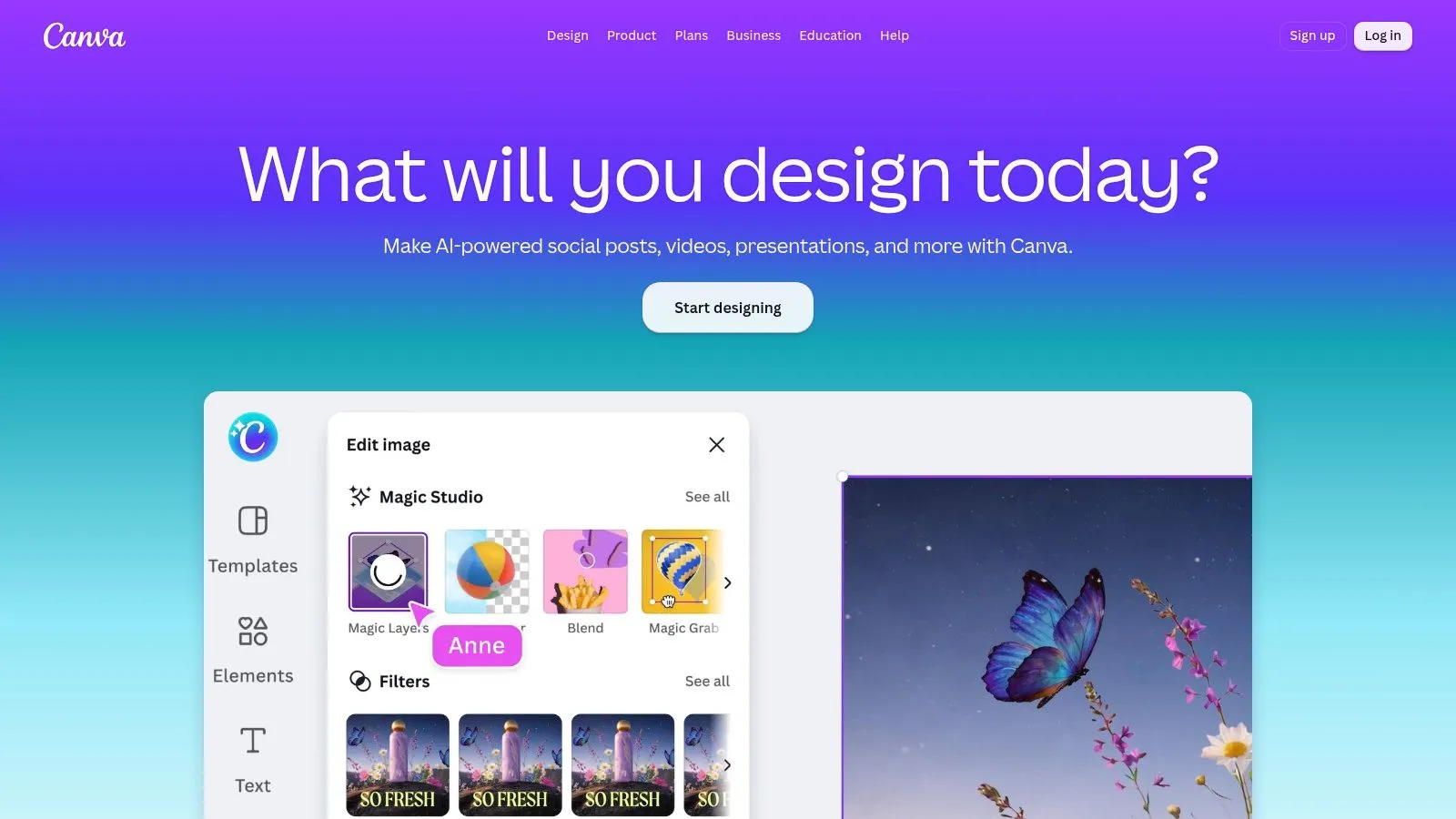
Canva serves a different creator from Thumbo AI. Its value is the transition between automation and hands-on design. Magic Design can generate thumbnail directions from a prompt or supplied assets, while the broader editor gives you precise control over typography, spacing, images, shapes, and brand elements.
The template ecosystem is its practical strength. A creator can start from a YouTube thumbnail layout, generate several directions, then replace the generic details with a real face, product, screenshot, or branded visual. Background Remover, Magic Eraser, and Magic Edit help isolate subjects or adjust a composition without moving into a more technical application.
Best use case and limitation
Brand Kit and one-click resizing make Canva particularly useful for channels that also create social posts, banners, and promotional graphics. The platform ships a ready 16:9 YouTube thumbnail canvas and direct publishing to YouTube, so the handoff from design to distribution is relatively short.
The trade-off is that fast templates can produce thumbnails that feel interchangeable. You’ll need to change the image hierarchy, headline treatment, and subject framing if your goal is a distinctive channel identity rather than a competent default.
For a deeper planning reference, use these YouTube thumbnail templates as a way to think about reusable layouts before adapting them inside Canva.
Some AI features and credits are restricted to paid plans or an AI Pass add-on. That matters for creators who expect unlimited experimentation rather than occasional assisted drafts. Canva is best understood as a broad design operating system with AI inside it, not a fully automated thumbnail specialist.
3. Adobe Express
Best for: monetized channels and brands that value Adobe assets, brand controls, and commercial-use considerations.
Adobe Express uses a template-led YouTube thumbnail flow with Adobe Firefly features. You can combine text-to-image generation, generative fill, effects, Adobe Stock assets, logos, colors, and fonts in one browser-based workflow.
Its strongest distinction is not raw automation. It’s the surrounding Adobe ecosystem. Channels working with sponsors, agencies, or commercial clients may prefer a tool that places more emphasis on content credentials and commercial-safety controls. Those safeguards don’t replace a human review of every asset, but they address a concern that casual AI image generation often leaves unclear.
Where Adobe Express fits
Express is well suited to a polished, brand-led thumbnail. A team can establish visual rules, use approved assets, and produce variations for related social formats through quick resizing. Firefly can help create a background or visual concept when the required image isn’t already available.
That workflow offers more control than a one-click generator, but less granular layer-style editing than full Photoshop. The distinction matters if your thumbnails depend on detailed masking, elaborate compositing, or frame-by-frame visual treatment.
Premium Stock assets and some AI usage require the Premium tier. A creator who already works in Adobe’s environment may accept that cost because the asset library and brand workflow reduce tool switching. A solo creator seeking the fastest possible first draft may find the setup heavier than a specialized generator.
Adobe Express is therefore a sensible choice when brand safety, approved assets, and polished consistency matter more than maximum generation speed.
4. Picmaker
Best for: non-designers who want a quick route from template to finished thumbnail.
Picmaker’s defining feature is the one-click MAD Button, which automatically enhances a design. That makes the product less about constructing a thumbnail from a blank canvas and more about improving a rough composition quickly.
You can work from YouTube-optimized templates and sizes, remove a background, receive AI text suggestions, resize an asset, and use social publishing helpers. The workflow should appeal to a creator who already knows the video’s promise but doesn’t want to make repeated decisions about spacing, contrast, or finishing touches.
The trade-off
Picmaker keeps the learning curve light. That’s useful for a new channel or a solo operator who needs a reliable publishing routine without studying professional design software. The MAD Button can shorten the path to a presentable result, but automation also means you’ll want to inspect whether the enhancement strengthens the video’s central idea or merely adds visual intensity.
AI features and export limits vary by plan, and free access is limited. Picmaker also has a smaller asset ecosystem than larger suites such as Canva or Adobe Express. That may not matter for a recurring format built around your own photos and short text, but it can become restrictive when you need unusual imagery or more elaborate brand systems.
Picmaker’s best role is a lightweight finishing tool. It’s a practical choice when speed matters, the layout is simple, and you want assistance rather than a fully automated creative director.
5. Kapwing
Best for: video-first creators who want to turn an existing clip into a thumbnail quickly.
Kapwing is strongest when the thumbnail begins inside the video workflow. Its dedicated thumbnail process lets you select a freeze frame, add text and overlays, remove backgrounds, and refine the image without exporting the video to a separate design application.
That frame-first approach solves a common production problem. A creator may already have the right expression, product reveal, or visual reaction inside the edit, but finding and preparing that moment takes time. Kapwing reduces the distance between the finished video and the supporting thumbnail.
Collaboration changes the choice
Kapwing also includes an AI assistant called Kai, templates, and collaboration features. Higher tiers add brand kit functionality, giving teams a clearer path from one-off thumbnail work to repeatable production across multiple videos.
A video editor that can create the thumbnail from the source footage may save more time than a stronger image generator used in isolation.
AI usage may be credit-metered, and the free plan has export limitations. The best value may depend on whether you already use Kapwing for video editing and collaboration. If you only need a static image and rarely touch video, a focused thumbnail generator or template editor can be more direct.
For practical composition guidance, review these YouTube thumbnail best practices before choosing the frame. Kapwing can make the production handoff efficient, but it can’t rescue a weak source frame without additional image work.
6. Fotor
Best for: beginners who want an uncomplicated AI thumbnail entry point and basic touch-up tools.
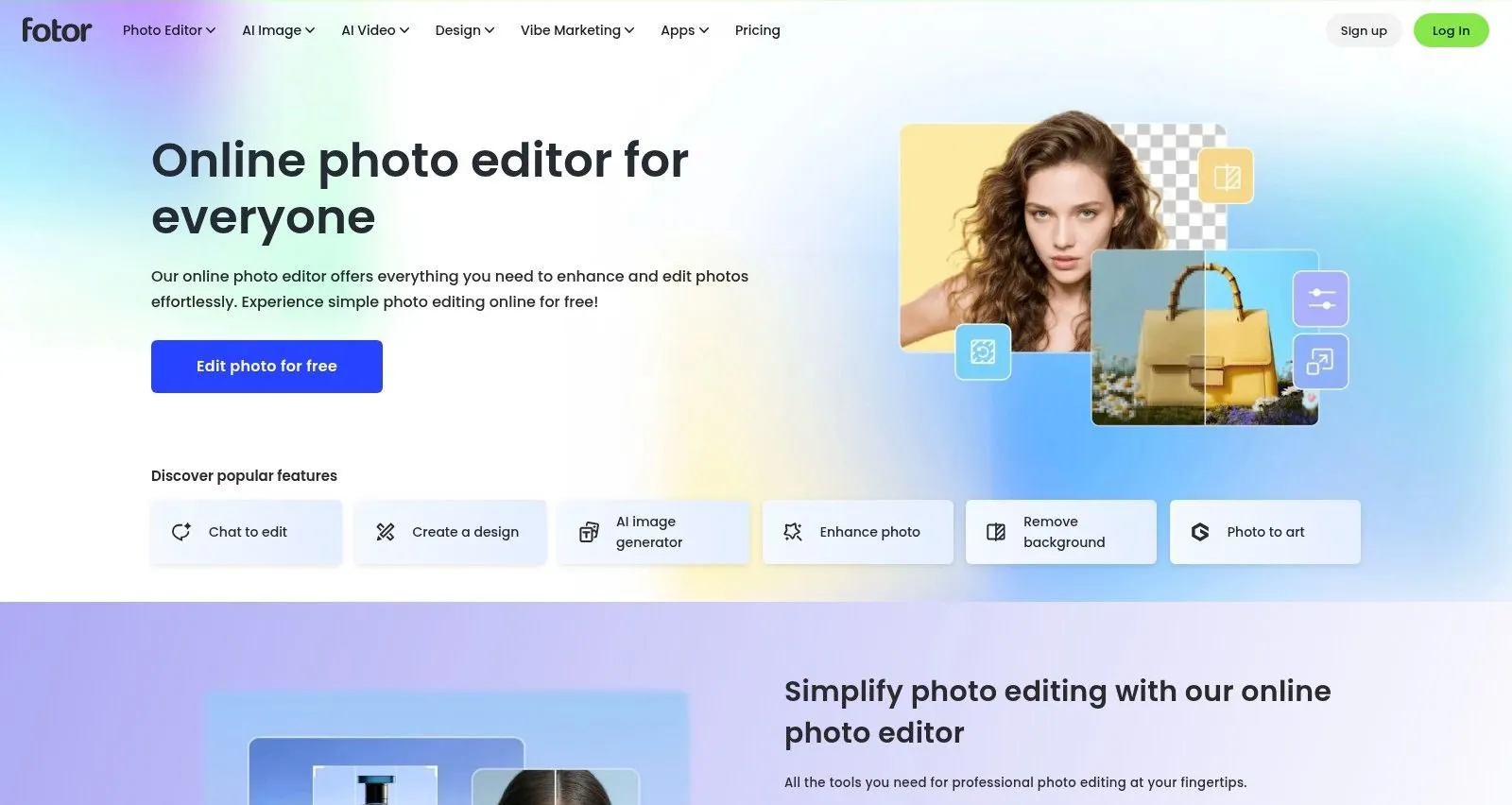
Fotor keeps the workflow close to the immediate task. Its AI thumbnail flow is optimized for the 16:9 YouTube format, then moves into an editor with background removal, object erasing, effects, and common adjustment tools.
That sequence suits a newcomer who doesn’t want to assemble a design system before making a first thumbnail. Ready-made templates provide a starting structure, while the editor handles practical fixes such as removing an unwanted object, isolating a person, or adjusting the visual treatment around the headline.
What you give up
Fotor’s simplicity is also its boundary. Advanced assets and tools sit behind paid tiers, and its professional typography library is smaller than the one available in broader suites. Creators who rely on refined lettering, carefully matched type families, or a large collection of brand assets may reach that limit quickly.
For a simple channel format, however, those constraints may be acceptable. A thumbnail built around one face, one object, and a short hook doesn’t require a complex production environment. The important test is whether Fotor’s first output remains legible when reduced on a phone and whether the editor lets you correct the focal point without slowing the process.
Fotor is a good shortlist candidate for quick, guided production, especially when the creator values ease of use over extensive art direction.
7. Picsart
Best for: mobile creators who need to design thumbnails while filming, editing, or working away from a desktop.
Picsart’s main advantage is access across devices. Its mobile and web apps combine AI image generation, creative effects, background and object removal, smart resizing, templates, and a large content library.
That matters for creators who work from a phone rather than treating mobile as a backup. A vlogger can capture a photo, isolate the subject, add a headline, and prepare a YouTube thumbnail without waiting to return to a desktop. The same account can support broader visual work across filming and publishing.
Mobile convenience versus plan complexity
Picsart is approachable for non-designers because templates and effects reduce the need to build every element from scratch. Its broad creative library can also help a creator explore a visual direction when the source footage doesn’t provide a strong thumbnail image.
The drawback is access complexity. Some features, assets, and HD exports require a subscription, while differences between web and app experiences can make plan comparisons less obvious. A mobile-first workflow should therefore include an export test before adoption, not just a test of the editor.
Picsart is particularly useful when speed of access matters more than specialized YouTube automation. It won’t necessarily provide the persona locking or channel-style matching of Thumbo AI, nor the typography focus of Kittl, but it gives creators a flexible visual toolkit wherever they’re working.
8. Snappa
Best for: repeatable thumbnail formats and creators who want a lightweight editor rather than a generative system.
Snappa is template-first and deliberately simple. It provides YouTube-sized canvases, a template library, background removal, quick export, and a straightforward interface for text-plus-image layouts.
Its value appears after you’ve settled on a format. A channel might use the same headline position, color treatment, and subject placement for every upload, then swap the image and wording. Snappa makes that recurring process easy to repeat without introducing a large set of controls that can slow production.
A strong fit for manual consistency
Snappa has fewer cutting-edge AI generation features than larger suites. That isn’t automatically a weakness. If your thumbnails depend on real screenshots, creator photos, or product images, a stable template and fast editing can matter more than generating a new scene.
The free plan has strict monthly download limits, while the Pro plan supports unlimited downloads. That makes plan selection closely tied to publishing rhythm. Frequent creators should compare expected output volume with those limits before building a workflow around the free tier.
Snappa works best when your creative decisions are already clear and you need execution, not ideation. It’s less appropriate for a channel that wants AI to invent distinct visual concepts for every video.
9. VistaCreate
Best for: small teams looking for budget-conscious templates, brand kits, and shared access.
VistaCreate follows a Canva-like model, combining YouTube thumbnail templates with AI Image Generator, Background Remover, Object Remover, one-click resizing, and brand kits. Pro plans include team seats, which gives small production groups a way to share a visual system rather than passing files between separate accounts.
The platform’s appeal is breadth without requiring a heavyweight creative setup. A team can create a thumbnail, resize related assets, preserve brand colors and logos, and use AI tools for image cleanup or concept development.
Where it may fall short
AI credits and usage limits apply, and the ecosystem is smaller than those of Adobe or Canva. Allowances change from plan to plan, so a team should confirm current credits and export conditions before committing to a recurring production process.
VistaCreate is a better fit for shared, repeatable design work than for highly specialized thumbnail automation. It can support a small team with a modest asset system, but creators who need persona consistency, deep typography controls, or video-frame extraction may find a more focused tool better suited to those needs.
Its strongest advantage is practical: several people can work within the same general visual language without adopting a complex design stack.
10. Kittl
Best for: typography-led thumbnails where lettering is part of the visual hook.
Kittl is the strongest choice here when the thumbnail’s identity depends on words. Its template library includes YouTube formats, while advanced text effects, bold lettering treatments, AI image generation, and vectorization give creators more control over the relationship between headline and image.
That focus aligns with a core thumbnail constraint. Image-generation quality is no longer judged on text-image alignment alone: a creator-centric benchmark co-designed with professional artists scores models across dozens of fine-grained rubrics covering real-world fidelity and creative generation, rather than reducing an image to one score (the creator-centric benchmark discussion). A thumbnail sits at the same intersection, and Kittl’s typography emphasis makes it useful when the title treatment carries much of the communication burden.
The economics of occasional generation
Kittl uses a token-based model for AI usage. That can work well for a creator who designs manually most of the time and uses AI image generation only when a specific visual is missing. Heavy AI users may need to upgrade as token allowances run down.
Kittl also offers AI Workflows for repeatable creative steps and brandable assets, which can help turn a successful thumbnail style into a reusable process. It has fewer non-design extras, such as social scheduling, than broader suites.
Before exporting, verify that the headline remains readable at the intended size. This YouTube thumbnail size guide is useful for checking the final canvas and avoiding a design that looks strong in the editor but loses clarity after reduction.
Top 10 AI Tools for YouTube Thumbnails, Comparison
| Tool | Core features | Strengths | Pricing | Best for |
|---|---|---|---|---|
| Thumbo AI | Auto-generate in under 60 seconds; 50+ Style Packs; channel-style match; persona locking; plain-language edits | Fast and consistent, built around YouTube packaging | From $19/mo (35 thumbnails), $39/mo (75), $79/mo (200); 7-day free trial; watermark-free exports | Creators who need rapid, on-brand thumbnails at scale |
| Canva | Magic Design, templates, background remover, Brand Kit, one-click resize | Flexible draft-then-refine workflow | Free tier; Pro and AI Pass for advanced features | Creators who want a full design suite plus manual control |
| Adobe Express | Firefly image generation and generative fill; Adobe Stock; brand controls; templates | Polished output with commercial-use safeguards | Free; Premium for stock and advanced AI | Brand-sensitive or monetized channels needing asset assurances |
| Picmaker | MAD Button one-click enhancement; templates; background remover | Very fast and lightweight for non-designers | Freemium with paid tiers for exports and features | Non-designers who want a quick, click-driven thumbnail |
| Kapwing | Freeze-frame from video; AI assistant; collaboration; brand kit | Strong video-first workflow and team features | Free limits; paid plans for full features and exports | Video editors and teams tying thumbnails to the edit |
| Fotor | Guided AI thumbnail flow; background and object remover; templates | Simple, beginner-friendly editor | Freemium; paid tiers unlock advanced assets and exports | New creators wanting a fast, simple entry point |
| Picsart | AI effects, background removal, templates; strong mobile apps | Excellent mobile and cross-device experience | Freemium; subscription for HD exports and premium assets | Mobile-first creators designing on the go |
| Snappa | YouTube-sized canvases, templates, background remover, quick export | Very fast with a low learning curve | Free plan with download limits; Pro for unlimited downloads | Creators with repeatable formats who need speed |
| VistaCreate | AI image generation, background and object removal, templates, team seats | Budget-friendly with simple brand tools | Pro plans add team seats; AI credits apply | Small teams wanting shared brand tools at lower cost |
| Kittl | Strong typography and effects; AI image generation; vectorizer; AI Workflows | Excellent type and style control | Token-based AI usage; paid plans for assets | Creators focused on bold lettering and style control |
Choose the Tool That Fits Your Publishing Rhythm
The best AI for YouTube thumbnails depends on what repeatedly slows you down. If you spend most of your time turning an idea into a first draft, Thumbo AI is the most direct choice. Its video-reading workflow, Style Packs, channel style matching, persona locking, plain-language edits, and thumbnail volume plans target speed and repeatability rather than open-ended design exploration.
Choose Canva when you want a broad template ecosystem and expect to refine AI drafts manually. Its Brand Kit, editing controls, resizing, and publishing workflow make it a strong general-purpose option for creators who produce more than thumbnails. Choose Adobe Express when Adobe Stock access, brand controls, and commercial-use considerations carry more weight than the quickest possible generation.
For video teams, Kapwing deserves priority because it connects frame selection and thumbnail design directly to the editing process. That connection can remove a handoff that would otherwise require exporting a frame, opening another tool, and rebuilding the composition. Picsart is the better fit for mobile-first production, particularly when your thumbnail work happens alongside filming and editing on a phone.
Typography changes the shortlist. Kittl is the strongest option when expressive lettering, text effects, and style control define the thumbnail. Its token model makes more sense for occasional AI image generation than for constant automated creation.
The lighter options have clear roles. Picmaker suits non-designers who want one-click enhancement. Fotor offers a guided AI entry point with common editing fixes. Snappa works well for stable, recurring formats and straightforward exports. VistaCreate makes sense for small teams that want shared brand tools and a budget-conscious design environment.
Don’t treat any first output as proof that a tool will improve channel performance. An AI draft helps only when it makes the video’s promise clearer. Pushed toward uncanny faces or over-polished scenes it reads as generic instead, and a thumbnail that oversells the video costs more in watch time than it gains in clicks. Judge every tool against your own impressions and CTR data in YouTube Studio rather than against a demo reel.
Test the same thumbnail brief in your shortlisted tools. Check the first output at small size, record how long the revision takes, confirm export limits, and compare recurring generation needs with each plan’s stated limits. Keep human review in the loop, especially when AI changes facial expressions, visual claims, or the perceived promise of the video.
Mobile viewing makes that review essential. Current trend guidance converges on the same three things: high-contrast color, minimal text, and a single clear focal point. Use those ideas to evaluate tools, but don’t let predicted clickability override accuracy or brand trust.
Thumbo AI turns a video idea into ready-to-publish YouTube thumbnails with automated styling, persona consistency, Style Packs, plain-language edits, and export options built for recurring creator workflows. Visit Thumbo AI to test whether its speed and repeatable brand controls fit your publishing rhythm.