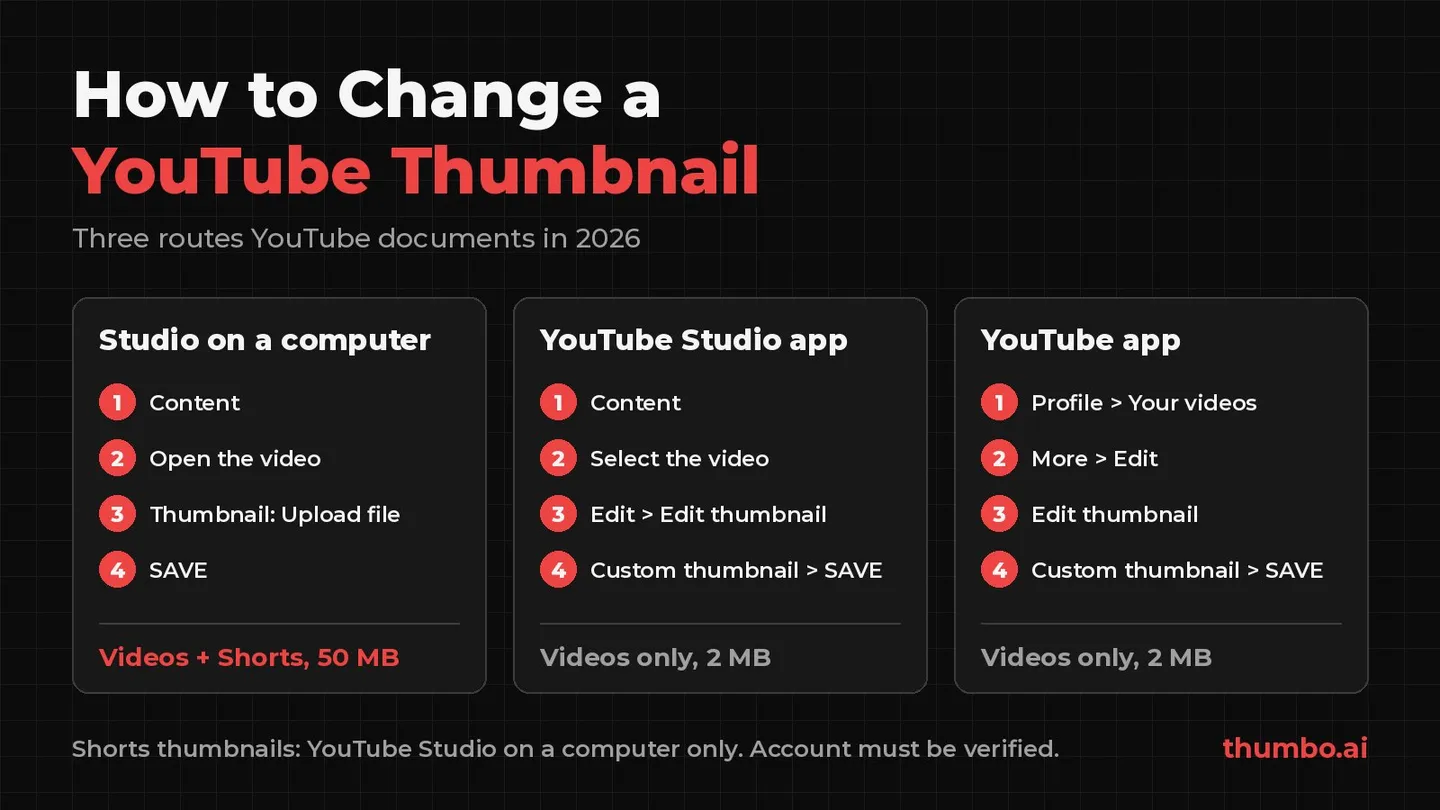
To change a thumbnail on YouTube, open YouTube Studio on a computer, select Content, open the video, click Upload file below “Thumbnail”, choose your image and click SAVE. The same steps add a thumbnail to a new upload and replace one on a video that has been live for years. On a phone, the YouTube Studio app and the main YouTube app both have an Edit thumbnail option for videos, but a custom image for a Short can only be uploaded in YouTube Studio on a computer (YouTube Help).
Two things decide whether those steps work: the channel must be verified, and the file must fit the limit of the device you upload from, 2 MB on a phone and 50 MB on a computer. This guide covers every route YouTube documents as of October 2026, the reasons the upload button goes missing, and how to replace a thumbnail on a published video without guessing.
Table of Contents
- Quick Answer: Where to Change a YouTube Thumbnail
- Before You Start: Unlock Custom Thumbnails
- How to Change a Thumbnail on a Computer
- How to Change a Thumbnail on Your Phone
- How to Change a YouTube Shorts Thumbnail
- Thumbnail Size and File Limits
- When to Change the Thumbnail on a Published Video
- Changing Thumbnails With A/B Testing
- Why You Can’t Change Your YouTube Thumbnail
- Thumbnail Rules That Can Cost You the Feature
- Thumbnail Change Action Plan
- FAQ
Quick Answer: Where to Change a YouTube Thumbnail
| Where | Path | Videos | Shorts |
|---|---|---|---|
| YouTube Studio on a computer | Content, open the video, below “Thumbnail” click Upload file, SAVE | Yes, up to 50 MB | Yes, the only route |
| YouTube Studio app (Android, iPhone, iPad) | Content, select the video, Edit, Edit thumbnail, Custom thumbnail, SELECT, SAVE | Yes, up to 2 MB | No |
| YouTube app (Android, iPhone, iPad) | Profile picture, Your videos, More next to the video, Edit, Edit thumbnail | Yes, up to 2 MB | Video frame only |
All three paths come from YouTube’s help page on adding custom thumbnails, which has separate tabs for Computer, Android and iPhone & iPad. There is no separate “change” button: replacing a thumbnail is the same action as adding one. YouTube adds a note to every route: “It may take time for your thumbnail changes to appear on YouTube.”
Before You Start: Unlock Custom Thumbnails
A new channel can choose one of YouTube’s auto-generated frames, but it cannot upload its own image until the account is verified. YouTube’s help page puts it plainly: you can “upload your own if your account is verified.”
Verification is a phone check. To verify your YouTube account, you enter a phone number and type in a code sent by text or voice call. Once that is done, the account can add custom thumbnails, upload videos longer than 15 minutes, live stream and appeal copyright claims. Two limits catch people who manage several channels:
- A phone number can be linked to no more than 2 channels per year. A third channel needs a different number.
- Not every carrier delivers Google’s texts. If the code does not arrive, try the voice call option or a number on another carrier.
Check Feature eligibility
YouTube groups its tools into standard, intermediate and advanced features. Custom thumbnails are an intermediate feature, unlocked by phone verification; A/B testing of thumbnails is an advanced feature, unlocked by channel history or ID or video verification (YouTube Help).
To see what the channel has, sign in to YouTube Studio on a computer and go to Settings, then Channel, then Feature eligibility. Features you can use show “Enabled”. If custom thumbnails are not enabled, no file will make the upload button appear.
How to Change a Thumbnail on a Computer
The computer route is the most complete one: it handles videos and Shorts, accepts the largest files and shows the A/B testing option. YouTube’s steps for a video:
- Sign in to YouTube Studio.
- From the left menu, select Content.
- Find the video and click its edit icon to open the details page.
- Below “Thumbnail”, click Upload file and pick the image on your computer (or select Get suggestions).
- Click SAVE.
After saving, check the video’s public page in a private window. The change can take a while to reach every surface, so a feed that still shows the old image is not a failed upload.
Adding a thumbnail while you upload
A new video does not have to go live with an auto-generated frame. When you upload through YouTube Studio (CREATE, then Upload videos), the video details include the same “Thumbnail” section, so the custom image can be set before the video is public.
Get suggestions and Ask Studio
YouTube now offers its own generated options next to the upload button. Get suggestions generates a thumbnail from inside the Thumbnail section, and Ask Studio takes a prompt such as “Create a thumbnail” in the publishing workflow. According to YouTube, Ask Studio “analyzes your video’s transcript and themes to suggest thumbnails that are tailored to your video”, accepts reference images, and takes follow-up prompts such as making the text larger. Review a generated image like any other: accurate to the video, readable at small sizes.
How to Change a Thumbnail on Your Phone
YouTube documents two phone routes for regular videos, and they work the same on Android, iPhone and iPad.
YouTube Studio app
- Open the YouTube Studio app.
- From the bottom menu, tap Content.
- Select the video you want to edit.
- Tap Edit, then Edit thumbnail.
- Select an auto-generated thumbnail, or tap Custom thumbnail to pick an image from your phone.
- Confirm the selection and tap SELECT.
- Tap SAVE.
Main YouTube app
- Open the YouTube app.
- Tap your profile picture, then Your videos.
- Next to the video, tap More, then Edit, then Edit thumbnail.
- Select an auto-generated thumbnail or tap Custom thumbnail.
- Confirm with SELECT, then tap SAVE.
The phone limit is 2 MB for video thumbnails, so a full-size export made for a computer upload can be rejected on a phone even though its dimensions are right. The fix is a second, compressed copy: the compress image to 2MB tool shrinks an image under the limit right in the browser.
How to Change a YouTube Shorts Thumbnail
Shorts follow different rules. YouTube’s note on its Android and iPhone & iPad tabs: “Custom Shorts thumbnails are currently only available to add in YouTube Studio on a computer. You can add a custom thumbnail to a Short when uploading it on a computer or after it is uploaded.” Neither phone app can upload one; the YouTube app only lets you pick a different frame from the video. Custom Shorts thumbnails also went to Partner Program creators first and are expanding over time (YouTube Blog).
The steps on a computer:
- Sign in to YouTube Studio.
- From the left menu, select Content, then Shorts at the top.
- Find the Short and click its edit icon.
- Below “Thumbnail”, click Upload file. YouTube recommends a 9:16 image.
- Click SAVE.
Do not reuse a 16:9 image for a vertical video. YouTube warns that “Vertical videos with 16:9 custom thumbnails will be replaced by an auto-generated 4:5 thumbnail on the home, explore, and subscription pages”; the custom image still appears on the watch feed, watch history and non-mobile platforms. A/B testing is not available for Shorts either. The full Shorts walkthrough, with size and design notes, is in how to add a thumbnail to a YouTube Short.
Thumbnail Size and File Limits
YouTube’s recommendations, all from the custom thumbnails page:
| Spec | Videos | Shorts |
|---|---|---|
| Recommended size | 3840 x 2160 px | 2160 x 3840 px |
| Minimum | 640 px wide | 640 px tall |
| Aspect ratio | 16:9 | 9:16 |
| Formats | JPG or PNG | JPG or PNG |
| Upload limit on a phone | 2 MB | Not available on a phone |
| Upload limit on a computer | 50 MB | 50 MB |
Podcasts have their own rules: 10 MB on a phone, and a 1:1 image for podcast playlists.
The recommended video size is three times 1280 x 720 in each direction, or nine times the pixels (8,294,400 against 921,600). Many guides still treat 1280 x 720 as the target and 2 MB as the ceiling, among them this thumbnail size guide, dated January 2026. Since 1280 x 720 is still twice the 640 px minimum, it uploads fine; it is simply no longer what YouTube asks for. One case where it matters: in an A/B test, if any thumbnail is below 720p (1280 x 720), YouTube downscales all of the test’s thumbnails to 480p (854 x 480).
To turn an image of the wrong shape into a clean 16:9 or 9:16 file, the YouTube thumbnail resizer has 1280 x 720, 1920 x 1080, 2560 x 1440 and 1080 x 1920 presets and works in the browser. For the full set of YouTube dimensions, see the YouTube video and thumbnail size guide.
When to Change the Thumbnail on a Published Video
Changing the thumbnail of a live video is normal and YouTube encourages it. Its own thumbnail and title tips say “90% of the best-performing videos have custom thumbnails” and add: “We also recommend experimenting with updating older thumbnails to increase your video’s appeal to new viewers.”
Good reasons to replace a thumbnail:
- It is still an auto-generated frame. The single clearest upgrade.
- Impressions click-through rate is low for its traffic source while viewers who do click watch well, which points at the packaging rather than the video.
- The channel’s style has changed and older videos look like they belong to someone else.
- The video’s promise has shifted. An old title and image may undersell a tutorial that now answers a common search.
Read the numbers first
Open the video in YouTube Studio, then Analytics, then the Reach tab, and note impressions and impressions click-through rate before you change anything. CTR only means something next to a comparison: the same video before and after, or similar videos on the same channel, with the same traffic sources. A 5% CTR can be strong on Browse features such as the home feed and weak in search, which is why YouTube CTR benchmarks are only useful split by traffic source.
Change one thing at a time when you can: the crop, the background contrast or the text.
Keep a copy of the old thumbnail
Before replacing an image, save the current one so the swap can be undone. If the original file is lost, the YouTube thumbnail downloader saves the thumbnail of any video from its link in every size YouTube serves, up to 1280 x 720.
Changing Thumbnails With A/B Testing
Manual swaps compare two different time periods, and a lot changes between them. YouTube’s built-in A/B testing shows up to three thumbnails (or titles, or title and thumbnail pairs) to viewers at the same time and keeps the one with the highest watch time share (YouTube Help).
| Rule | Detail |
|---|---|
| Where | YouTube Studio on a computer only |
| Who | Channels with advanced features enabled |
| Not eligible | Shorts, scheduled lives, Premieres before they become long-form videos, and videos that are made for kids, for mature audiences, or private |
| Options | Up to 3 thumbnails and/or titles |
| Duration | Usually completed within two weeks |
| Result | Winner, Performed Same or Inconclusive; without a clear winner, the first option you uploaded is shown |
To start one, open the video’s details page in YouTube Studio and click A/B Testing under “Thumbnail”. Two rules matter if you are about to change a thumbnail by hand:
- Changing the title or thumbnail during a test stops it. The test has to be restarted, so wait for it to finish.
- YouTube recommends testing older videos first, to reduce the impact on the channel’s overall views.
YouTube also advises against near-identical options: “Testing titles and thumbnails that are too similar to each other can cause tests to run for longer.” For design ideas worth testing, see YouTube thumbnail best practices.
Why You Can’t Change Your YouTube Thumbnail
| Symptom | Cause | Fix |
|---|---|---|
| No Upload file or Custom thumbnail option | Account not verified, or custom thumbnails not enabled | Verify the phone number, then check Settings, Channel, Feature eligibility |
| ”Daily custom thumbnail limit reached” | The channel hit its daily upload limit | Try again in 24 hours |
| File rejected on a phone | Over the 2 MB phone limit | Compress the file, or upload from a computer (50 MB) |
| No upload option for a Short | Computer-only, and still rolling out beyond Partner Program channels | Use YouTube Studio on a computer, or pick a frame instead |
| New thumbnail not showing yet | Changes take time to spread across YouTube | Wait, then check in a private window or on another device |
| A/B test ended early | The title or thumbnail was edited during the test | Restart the test and leave it until it completes |
| Vertical video shows a different image | A 16:9 thumbnail on a vertical video | Upload a 9:16 thumbnail |
| Thumbnail removed | It broke the thumbnails policy | See the next section, then upload a compliant image |
The daily limit is not one fixed number. YouTube says limits “may vary by country/region or channel history”, and that Community Guidelines strikes “will affect how many custom thumbnails you can upload”. In the Feature eligibility table, channels with intermediate access get a limited daily limit for custom thumbnails, and channels with advanced access get a higher one. A channel that keeps hitting the limit with intermediate access may be able to verify its identity to upgrade to advanced access, which YouTube says “usually has higher limits” (YouTube Help).
Thumbnail Rules That Can Cost You the Feature
A thumbnail is held to the Community Guidelines like the video itself. YouTube’s thumbnails policy bans, among other things, sexual imagery, violent or gory imagery meant to shock or disgust, vulgar or lewd language, and “A thumbnail that misleads viewers to think they’re about to view something that’s not in the video.”
What happens on a violation:
- Any violation: the thumbnail is removed and the channel may get a strike. Three strikes in 90 days can end the channel.
- First violation: usually a warning with no penalty. Taking a policy training lets the warning expire after 90 days, unless another thumbnail breaks the same policy within that window.
- Repeat offenses: YouTube may remove custom thumbnail privileges for 30 days, or terminate the account.
- Borderline, not violating: YouTube may age-restrict the video or remove the thumbnail without a strike, and you can upload another.
YouTube also “may turn off custom thumbnails for certain search results when they’re considered inappropriate for viewers.” The safe rule when replacing a thumbnail: the new image must show something that is actually in the video.
Thumbnail Change Action Plan
- Check Feature eligibility in YouTube Studio settings. If custom thumbnails are not enabled, verify the phone number first.
- Export two files: the full-size image (3840 x 2160 for videos, 2160 x 3840 for Shorts) and a copy under 2 MB for phone uploads.
- Save the current thumbnail and note impressions and CTR from the Reach tab.
- Replace the image in YouTube Studio on a computer (or the phone apps, for regular videos only) and click SAVE.
- Use A/B testing instead if the channel has advanced features and the video is not a Short; do not edit the thumbnail while a test runs.
- Compare like with like after a few weeks: the same video and traffic sources, before and after.
- Keep or roll back, and carry what you learned into the next video’s thumbnail.
If the slow part is producing the replacement, Thumbo generates 16:9 thumbnails and native 9:16 Shorts covers from a topic or a pasted YouTube link. Its downloads are 2K JPEG files under 2 MB, so they fit the phone limit as they are.
FAQ
How do I change the thumbnail on a YouTube video that is already published?
Open YouTube Studio, go to Content, open the video, click Upload file below “Thumbnail”, choose the new image and click SAVE. The steps are the same as adding a thumbnail to a new video. Only the image changes; the video and its link stay the same.
Why is there no option to upload a custom thumbnail?
The account is most likely not verified. Custom thumbnails require phone verification. Check Settings, Channel, Feature eligibility in YouTube Studio; if custom thumbnails are not enabled there, verify the phone number and come back.
Can I change a YouTube thumbnail on my phone?
Yes, for regular videos. In the YouTube Studio app, go to Content, select the video, tap Edit and Edit thumbnail. In the YouTube app, tap your profile picture, Your videos, then More, Edit and Edit thumbnail. The file must be 2 MB or less. A custom image for a Short cannot be uploaded on a phone; the YouTube app only lets you pick a different frame from the video.
How do I change the thumbnail of a YouTube Short?
Upload your own image in YouTube Studio on a computer: Content, Shorts, open the Short, Upload file below “Thumbnail”, SAVE. YouTube recommends a 9:16 image, ideally 2160 x 3840 pixels. On a phone, you can only pick a frame.
How long does it take for a new thumbnail to show?
YouTube does not give a time, only that “It may take time for your thumbnail changes to appear on YouTube.” If the old image still shows, check in a private window or on another device before uploading again.
How many times can I change a YouTube thumbnail?
YouTube does not publish a limit per video, but each channel has a daily limit on custom thumbnail uploads. If you see “Daily custom thumbnail limit reached”, try again in 24 hours. If an A/B test is running on the video, changing the thumbnail stops the test.