You open YouTube expecting a quick name tweak, then the real problem hits. The old channel name doesn’t match the videos anymore, your handle still points to the wrong brand, and the banner, thumbnails, and About text all feel out of sync. That’s the moment when how to change your channel name on YouTube stops being a tiny edit and starts acting like the first move in a full rebrand.
You can still make the change fast. YouTube’s current workflow runs through YouTube Studio → Customization → Profile → Name on desktop (older Studio builds label that tab Basic info), and the app has its own edit path from your channel page. But the name field is only the visible part of the job. If you stop there, you often end up with a channel that has a new label and an old identity everywhere else.
Table of Contents
- Why a YouTube Channel Name Change Is More Than One Click
- Changing Your Channel Name on Desktop Through YouTube Studio
- Changing Your Channel Name on the YouTube Mobile App
- Handling Brand Accounts and Multi-Channel Managers
- What a Rename Actually Changes and What It Does Not
- Troubleshooting and Rolling Back a Name Change
- Your 30-Minute Rebrand Checklist After the Rename
Why a YouTube Channel Name Change Is More Than One Click
A creator usually lands here in one of three situations. The channel started as a hobby under a personal nickname, then the niche changed. Or the content got sharper, but the old name still sounds broad and unfocused. Or a collaboration, podcast, or business pivot made the existing brand feel like a bad fit for what the channel is now.
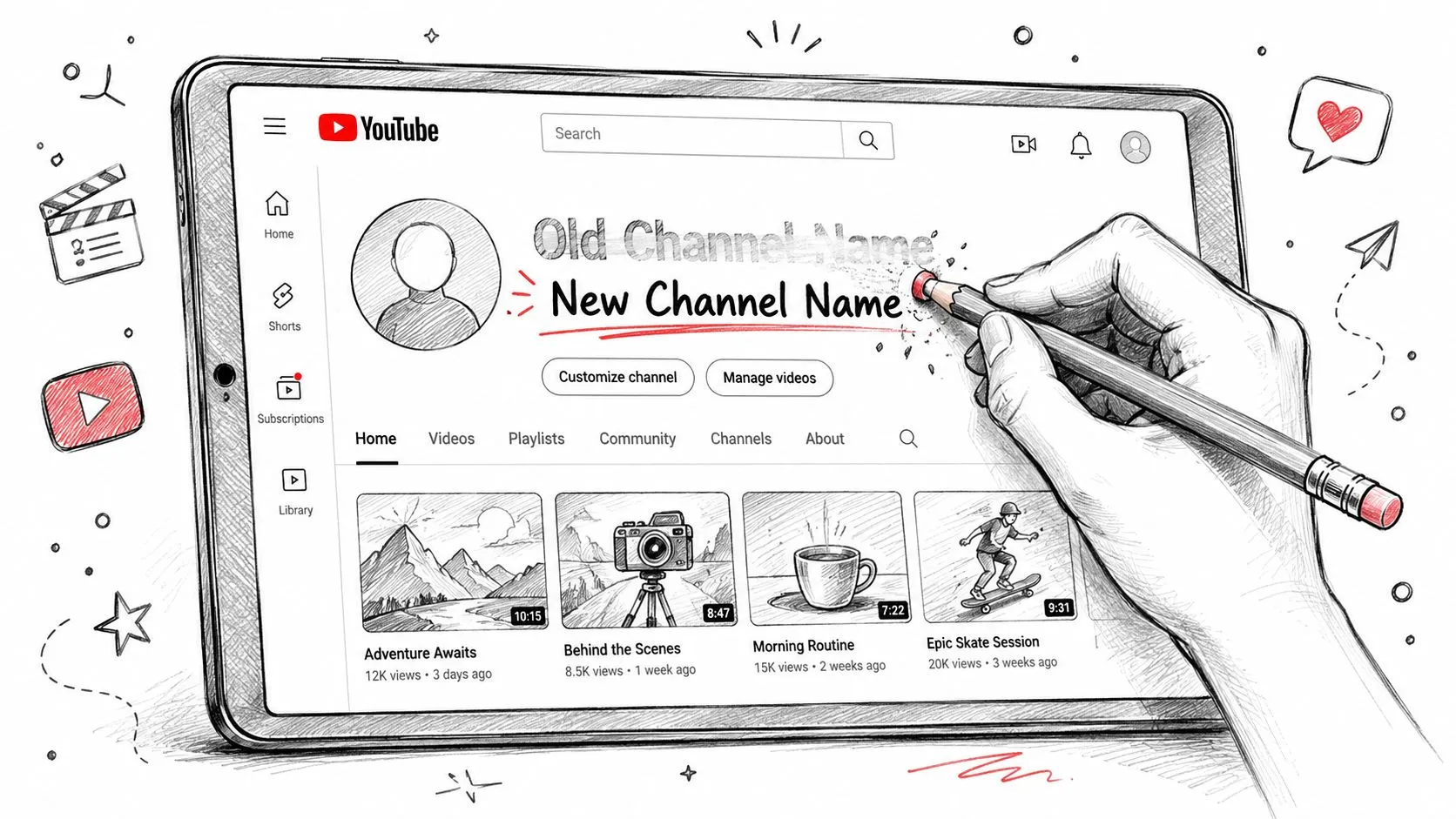
The visible channel name is only one surface. Your handle, custom URL, banner copy, thumbnail style, About section, and even the way people remember you in comments all need to line up if the new identity is going to stick. YouTube surfaces the name and handle together in the same Studio editor, which is why a name-only change can leave the rebrand half-finished, even though the channel technically has a new display name. If you are already spending time inside Studio, it is worth pairing this cleanup with the other channel-level settings you rarely open, like the monetization setup walkthrough that lives a few menu items away.
Practical rule: treat the rename as the start of a 30-minute rebrand sprint, not a 30-second text edit.
That mindset matters because the rename itself is lightweight. YouTube treats the change as a direct profile edit, not a channel migration, so nothing about your uploads or subscriber count moves. What is not instant is the display: YouTube’s own documentation warns that after changing your name, it may take a few days for the new name to update and display across YouTube. Plan around that lag instead of refreshing the page and assuming the edit failed.
Two limits are worth knowing before you start, both stated in the same help page. You can change your channel name twice within a 14-day period, and changing your name will remove your verification badge if your channel has one. Neither is a reason to avoid a rename you actually need, but both are reasons to settle on the final name before you publish rather than iterating live.
The important work after that is making sure the new name matches the rest of the channel identity, so viewers can still recognize you when the channel appears in search, recommendations, comments, and shared links.
Changing Your Channel Name on Desktop Through YouTube Studio
Desktop is still the cleanest way to do this because the layout shows you the full profile context. Start in YouTube Studio, then open Customization, then Profile. If your Studio still labels that tab Basic info, it is the same place. The field you need is the Name field, not the handle field, and that distinction matters because YouTube shows both in the same editor.
Follow the exact click path
The safest desktop sequence is simple.
- Open YouTube Studio. Sign in to the channel you want to rename, then look at the left menu.
- Choose Customization. YouTube keeps channel identity settings here.
- Open Profile. The editable name field is located there, on the tab older Studio builds call Basic info.
- Edit the Name field. Type the new channel name and check that it reads the way you want it to appear publicly.
- Click Publish. This is the step people forget most often.
That last click is the difference between an edit and a saved rename. The field can look correct on screen, but the old name stays active until you publish. Because the new name can take a few days to show up everywhere on YouTube, the preview is the last easy checkpoint you get. If the name wraps awkwardly, looks too long in the channel header, or clashes with the handle, fix it before you commit.
Confirm the preview before you leave
The Studio preview is useful because it shows you the name in context, not just as plain text. That helps when you’re choosing between a cleaner branded version and a more literal descriptive version. If the new name looks too cramped in the preview, shorten it now rather than discovering the problem on your homepage banner or in a comment reply.
If you edited the name and nothing changed, check the Publish button first. That’s the most common failure point on desktop.
After publishing, reopen the channel page and verify the updated name appears where viewers see it. The rename is a profile edit, not a migration, so there is no separate process to wait on. There is still a display lag, so treat the first check as confirmation that the edit saved, not as proof that every surface on YouTube has caught up.
Changing Your Channel Name on the YouTube Mobile App
A lot of creators do this from their phone because that’s where the idea hits. The mobile path is similar in spirit to desktop, but the buttons and labels are a little different, so it’s easy to tap the wrong field if you’re moving fast.
Use the app path that matches your device
In the main YouTube app, tap your profile picture, tap View channel at the top, then tap Edit next to your name, type the new channel name, and tap Save. The YouTube Studio app takes a slightly shorter route: tap your profile picture, tap Edit, then tap Edit next to your name and save from there. People sometimes get stuck at this point, because both apps put the handle field within a thumb’s reach of the name field.
The save action on mobile is not the same as desktop. Instead of a Publish button, you tap Save. If the keyboard covers the button, dismiss the keyboard first, then save. That tiny step is the difference between a completed rename and a frustrating loop back to the same screen.
Verify it on the channel page
Once you save, back out to the channel page and reopen it. That confirms the edit stuck. Mobile apps can make it feel like the change happened because the editor screen refreshes, but the live channel view is the ultimate test.
If the phone screen feels cramped or the app keeps dropping you into the handle field, switch to desktop. The desktop editor makes it easier to compare the name, handle, and description fields side by side, which helps if you’re changing more than just the visible title. That’s especially useful during a rebrand when every detail needs to line up before you announce anything.
Handling Brand Accounts and Multi-Channel Managers
Brand accounts complicate things because the person managing the channel is not always the same person whose Google account shows up in the corner. A creator might think they’re editing the right channel and accidentally be inside a personal account or a different managed brand channel. That’s the silent failure that wastes time, especially when multiple editors, managers, or agency teammates have access.
Verify the channel before you rename
Before changing anything, check the channel identity at the top of YouTube Studio and confirm the exact brand channel you meant to open. If you manage more than one, don’t trust memory. Open the channel page, compare the avatar, and make sure the Profile tab you are editing belongs to the correct brand.
Permissions matter too. A teammate with editing access can often adjust channel identity fields, but ownership controls are different from edit access. If the handle or ownership-related settings don’t behave the way you expect, the problem may not be the rename itself. It may be the permission level attached to the account that’s trying to make the change.
Keep teammates aligned before you publish
This is the part most standard how-to guides skip. A rename can affect channel art, links, pinned comments, and upload defaults, so the person doing the edit should tell the rest of the team before hitting save. If one teammate updates the name while another still schedules uploads under the old brand, the channel starts sending mixed signals immediately.
Good team habit: confirm who owns the channel, who can edit branding, and who needs a heads-up before the rename goes live.
For managed channels, the practical move is to treat the rename like a mini launch. One person makes the edit, another checks the live channel page, and the rest of the team updates templates, titles, and thumbnails in the same work session. That keeps the channel from drifting into a half-renamed state.
What a Rename Actually Changes and What It Does Not
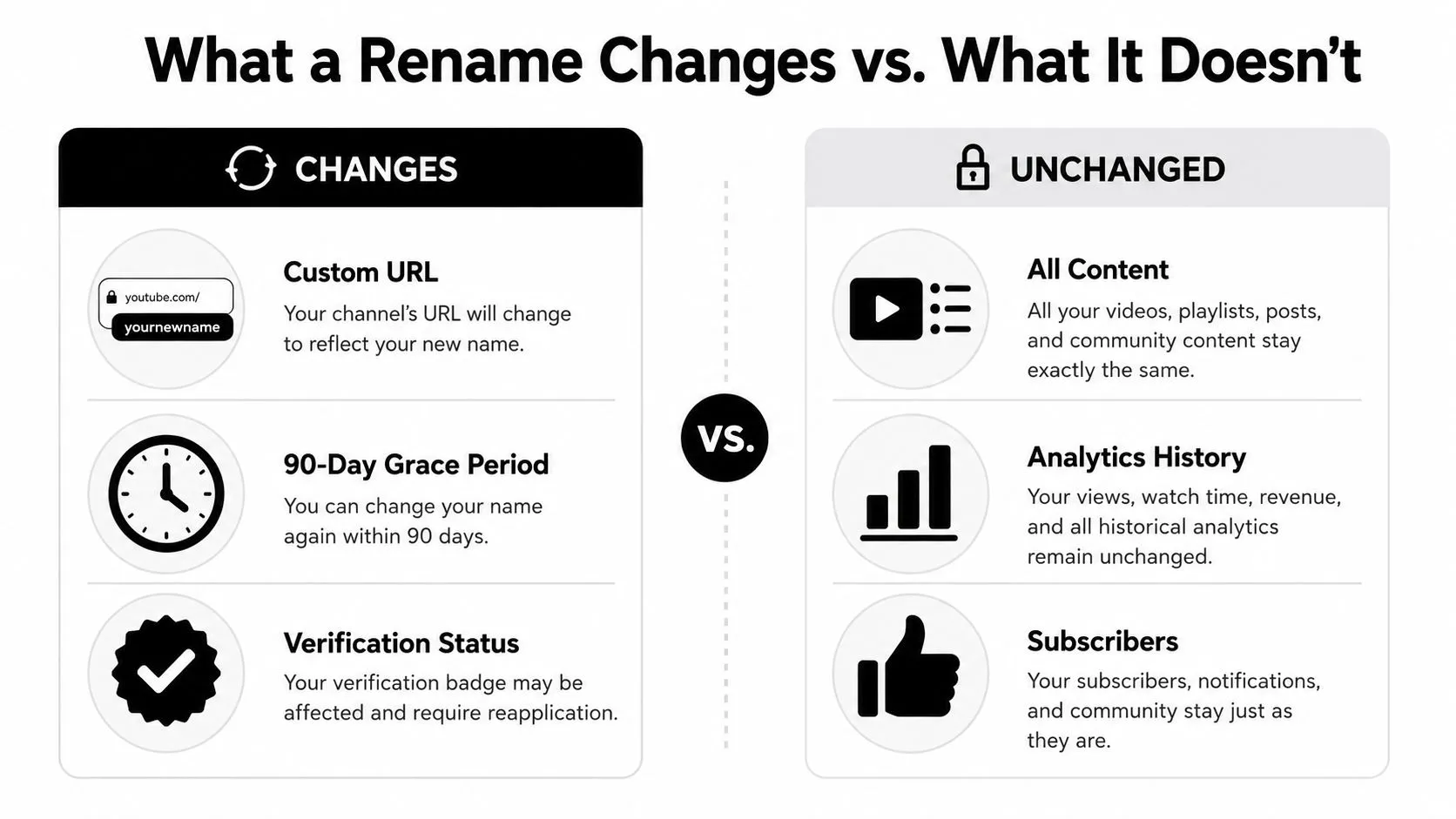
A YouTube rename looks simple, but the effects split into two buckets. Some things change right away. Others stay exactly where they are until you update them manually. That’s why creators get confused after a rebrand. They expect the new name to sweep across every surface at once, but YouTube doesn’t work that way.
The visible name is not the whole identity
The channel name is the public label people see on your channel and videos. The handle is separate, and both fields sit in the same Studio Profile tab. If you change only the name, the handle can still look like the old brand, which means mentions, tagging, and direct identity signals can stay mismatched.
The same idea applies to external surfaces. Embedded videos, old links, and posts on other platforms usually keep working, but they won’t automatically update their wording. If a tweet, blog post, or newsletter still says the old channel name, that’s a manual cleanup job.
What needs a manual follow-up
- Handle: review it separately so the new name and the @identity match. Changing the handle on its own does not touch verification, so it is the safer of the two edits.
- Description and links: update them together so discoverability and attribution stay consistent. This overview on private versus unlisted YouTube videos is useful if you’re also revisiting how you share older uploads during a rebrand.
- Verification badge: this one is not a maybe. YouTube states that a renamed channel won’t be verified and you’ll need to reapply, so a verified channel should treat the rename as a deliberate trade rather than a quick edit.
- Search and suggested traffic: the videos stay put, but the way people recognize the channel changes, which is why thumbnails and banner text matter right away.
- Subscribers and content: the rename is not a content migration. The channel remains the same channel, with the same uploads and audience history.
The cleanest way to think about it is this. The rename updates the sign on the door, not the building behind it. If you want the new identity to feel real, you have to update the surfaces people see most often.
Troubleshooting and Rolling Back a Name Change
Most rename problems fall into a small set of patterns. The new name does not appear immediately. The editor looks updated, but the public page still shows the old version. Or the creator decides the new name sounded better in the brainstorming doc than it does in the channel header.
If the change did not stick
First, reopen the editor and check whether you saved it. On desktop, that means confirming Publish went through. On mobile, it means looking for the Save or checkmark action. If the name is still editable in the field but not visible on the channel page, it usually means the final save step never completed.
If the name looks right in Studio but still hasn’t propagated everywhere, the answer is usually patience rather than another edit. YouTube says the new name may take a few days to update and display across the platform, and different surfaces refresh at different times, so a stale name in search results or an old comment thread is expected behavior in the first few days.
There is also one specific blocker worth checking. If the name field refuses to update at all, YouTube’s help page notes that channel name translations have to be deleted before the update will go through.
If you want to undo it
Mechanically, rolling back is simple. Edit the name again and publish the correction. You do not need a separate migration or support ticket for a basic name reversal.
The catch is the quota. Because YouTube allows two name changes per 14-day period, a rename plus an immediate rollback uses both of them, and you are locked out of the field until the window resets. So a reversal is not free: decide whether the new name is genuinely wrong or just unfamiliar before you spend the second change. The other reason to pause is if you also changed the handle or other branding fields and now need to line up the rest of the channel again.
The bigger confusion point is the handle. If your old handle is still visible in a link or mention, that doesn’t mean the rename failed. It usually means the handle and the channel name are still out of sync, which is a different fix.
Don’t judge the rename by one stale surface. Check the live channel page, the handle, and the Studio Profile editor before you assume it broke.
If the channel has a brand conflict, a recent rename issue, or permission limits inside a managed account, stop trying random edits and check the account setup. That saves time and keeps the channel from getting stuck in a loop of partial updates.
Your 30-Minute Rebrand Checklist After the Rename
A name change feels complete only when the rest of the channel catches up. The best move is to lock yourself into a short cleanup sprint and update the surfaces that viewers notice first.
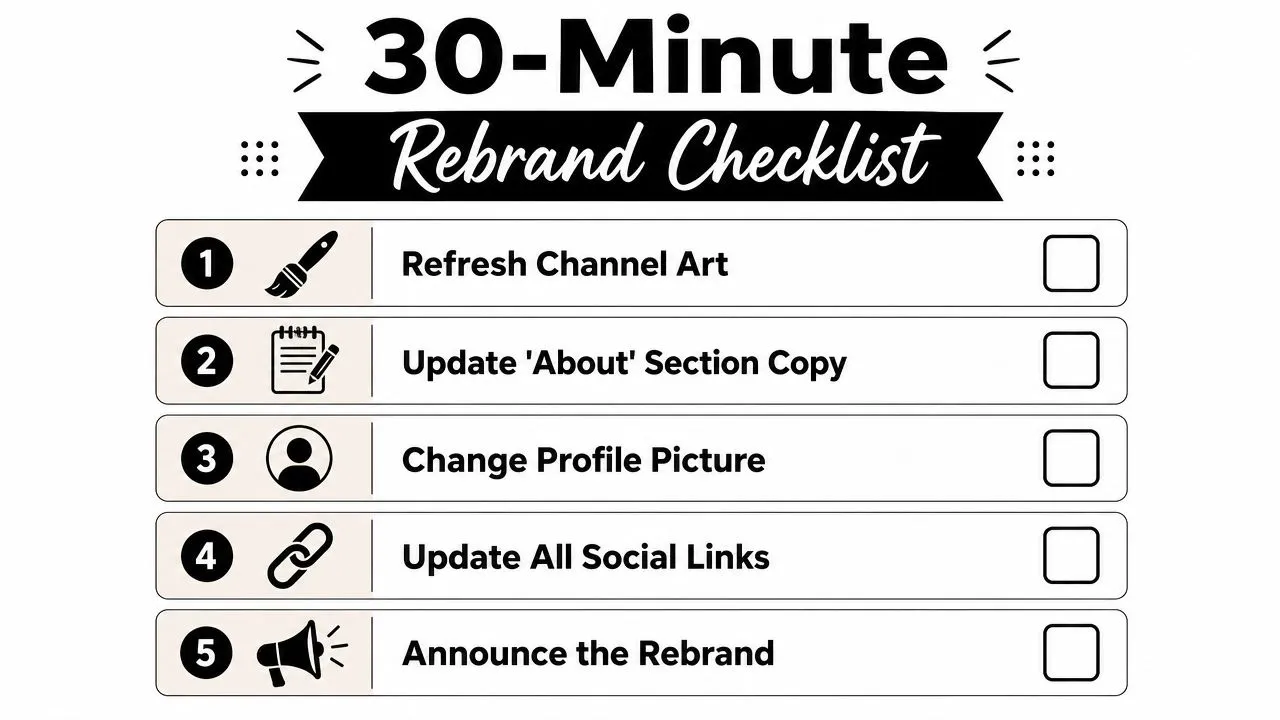
- Refresh Channel Art: make the banner match the new name and the tone of the content. If you want to keep the old one for reference, download your channel’s banner in full size before replacing it.
- Update the About section: revise the description so the new identity reads clearly in search and on the channel page. This graphic design fundamentals guide can help if you’re tightening the visual side too.
- Change the profile picture: use an image that fits the new brand, not the old one. You can save the current picture in full size first if you want an archive copy.
- Update all social links: make sure your listed links still point to the right profiles and landing pages.
- Announce the rebrand: pin a comment or post a short update so returning viewers don’t wonder what changed.
A smart final check is to look again a few days later, once the new name has had time to propagate across YouTube. Search your channel name, open a few comment threads, and confirm the banner, handle, and homepage now feel like one identity instead of three different versions of the same channel. If the channel still looks split between old and new, the rename is technically done, but the rebrand isn’t.
If you’re renaming your channel this week, use the desktop path once, then spend the rest of the session cleaning up the handle, banner, About text, and thumbnails together. If you want a faster way to make the new identity look intentional from the first upload, try Thumbo AI for your next thumbnail refresh and line up the visual branding with the new channel name.