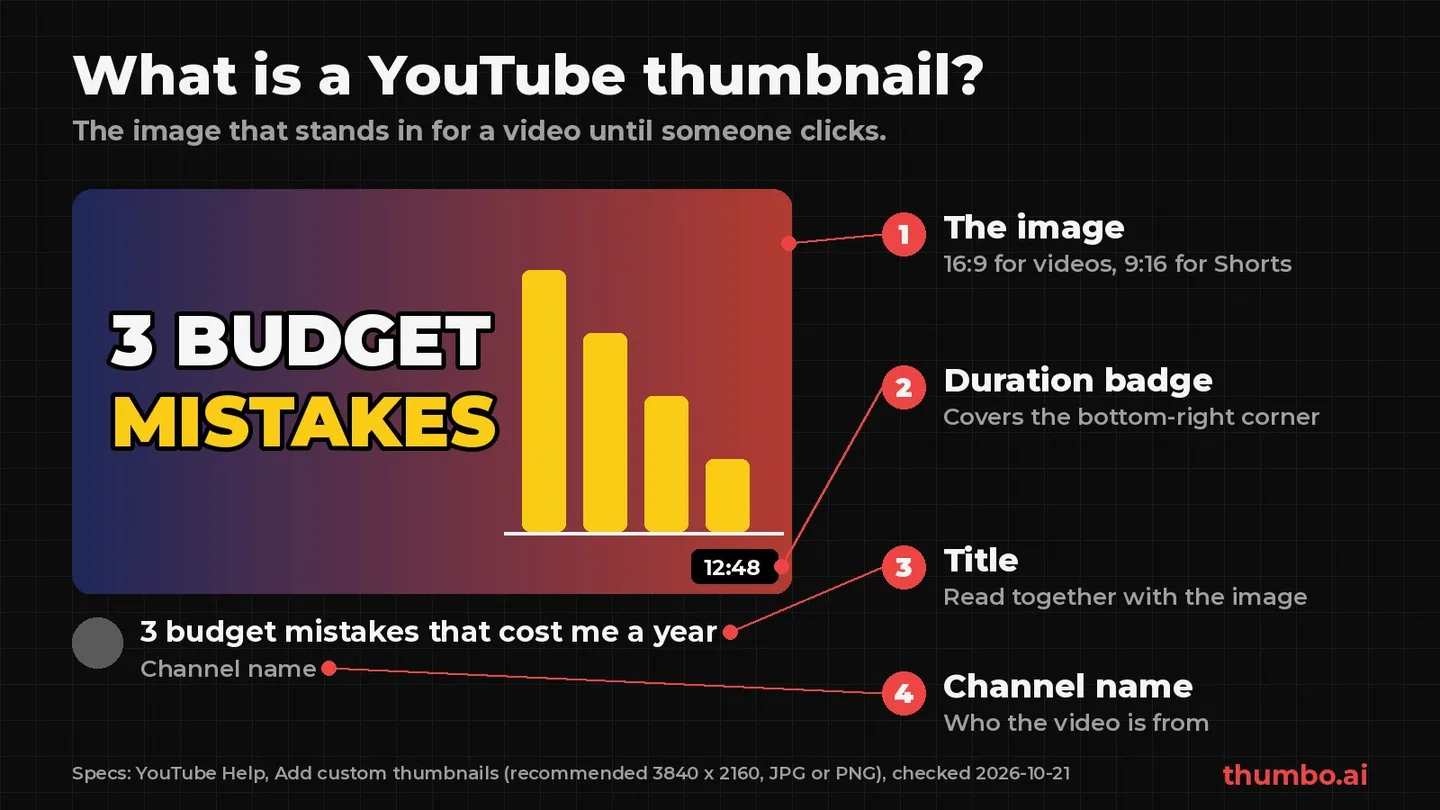
A YouTube thumbnail is the still image that represents a video before anyone plays it. It is the picture viewers see on the home page, in search results, next to the video they are watching and in their subscriptions feed, and it is the first thing that tells them what the video is about. YouTube’s own definition is short: thumbnails “let your audience view a quick snapshot of your content.”
Every video has one. If you do nothing, YouTube offers frames picked from the video. If your account is verified, you can upload your own image, called a custom thumbnail. This guide explains how both work, where thumbnails appear, the size and policy rules YouTube publishes today, and how to tell whether a thumbnail is doing its job.
Every rule and number below comes from YouTube Help pages read on October 21, 2026: Add custom thumbnails, Thumbnails policy, Impressions and click-through rate FAQs, A/B test titles and thumbnails and Get access to intermediate and advanced features.
Table of Contents
- YouTube Thumbnail Meaning in One Paragraph
- Where YouTube Thumbnails Appear
- The Parts of a Thumbnail Tile
- Auto-Generated vs Custom Thumbnails
- YouTube Thumbnail Size and Format Rules
- Shorts and Podcast Thumbnails Are Different
- What a Thumbnail Is Not Allowed to Show
- Why Thumbnails Matter: Impressions, CTR and Watch Time
- How to Add or Change a Thumbnail
- What Makes a Thumbnail Work
- Your First Thumbnail: An Action Plan
- FAQ
YouTube Thumbnail Meaning in One Paragraph
A thumbnail is a small preview image, the video’s cover. On YouTube it sits on top of every place a video is listed, paired with the title, and together they answer the viewer’s two questions: what is this, and is it worth my time. A thumbnail is not the video’s first frame (unless you choose that frame), and it can be changed after publishing. For videos it is a wide 16:9 image; for Shorts it is a tall 9:16 one.
The word comes from design, where a “thumbnail” is a picture shrunk to roughly the size of a thumbnail. That is the useful way to think about it: viewers often see it small, on a phone, surrounded by other videos.
Where YouTube Thumbnails Appear
YouTube’s analytics help puts it plainly: “your video thumbnails are always competing against other videos, whether on the homepage, ‘Up Next’ on the watch page, in search results, and even in subscription feeds.” In practice a thumbnail shows up in:
| Place | What surrounds it | What the viewer is doing |
|---|---|---|
| Home page | A grid of recommended videos | Browsing, no specific goal |
| Search results | Other answers to the same query | Looking for something specific |
| Up Next / related videos | A column next to the current video | Deciding what to watch next |
| Subscriptions feed | Recent uploads from channels they follow | Checking what is new |
| Channel page | Your other videos | Exploring your catalog |
| Embedded player on other sites | The web page around it | Reading something else |
The last row is easy to forget. YouTube says the custom thumbnail “will be used as the preview image in the embedded player”, which is one reason it asks for the image to be “as large as possible.”
Each place is a different context. A search viewer wants proof the video answers their question; a home page viewer needs a reason to stop scrolling. The same image has to work for both.
The Parts of a Thumbnail Tile
When people say “thumbnail” they usually mean the image, but viewers read the whole tile at once (the cover image above labels each part):
- The image. The part you control fully. 16:9 for regular videos, 9:16 for Shorts.
- The duration badge. A small label with the video length, laid over the bottom-right corner of the image. Anything important placed there gets covered.
- The title. Shown next to or under the image. The image and title should add to each other, not repeat each other word for word.
- The channel name and avatar. Tells viewers who the video is from, which matters most to people who already know the channel.
Because the title sits right beside the image, most thumbnails carry a few words at most, or none. The YouTube thumbnail text guide covers how many words fit and where they go.
Auto-Generated vs Custom Thumbnails
Auto-generated thumbnails
Every upload gets thumbnail options picked from the video itself. YouTube Help describes this as choosing “from auto generated suggested options.” They cost nothing and need no account verification, but they are frames from the footage: often mid-motion, with no text and no deliberate composition.
Custom thumbnails
A custom thumbnail is an image you design and upload. YouTube says you can “upload your own if your account is verified.” Verification starts with a phone number: in YouTube Studio, under Feature eligibility, you choose Verify phone number and enter a code YouTube sends by text or voice call.
Two limits apply to custom thumbnails:
- A daily cap. YouTube says “There’s a limit to how many custom thumbnails a channel can upload each day.” If you see “Daily custom thumbnail limit reached”, try again in 24 hours. The limit can vary by country or region and channel history.
- Strikes can take the feature away. Repeat policy offenses “may lead to the removal of your custom thumbnail privileges for 30 days or even account termination.”
Suggested thumbnails in YouTube Studio
YouTube Studio now offers generated options as well. Below “Thumbnail” on a video’s details page, there is a Get suggestions option next to Upload file, and YouTube’s Ask Studio assistant “analyzes your video’s transcript and themes to suggest thumbnails that are tailored to your video.” You can ask it for follow-up changes, such as making the text larger.
| Auto-generated | Custom | Studio suggestions | |
|---|---|---|---|
| What it is | A frame from the video | Your own image file | A generated image based on the video |
| Needs a verified account | No | Yes | Check Studio for availability |
| Control over layout and text | None | Full | Partial, through prompts |
| Best for | Placeholders, quick uploads | Any video you want found | A starting point to edit |
YouTube Thumbnail Size and Format Rules
YouTube’s current recommendations, from the custom thumbnails help page:
| Spec | Videos | Shorts |
|---|---|---|
| Aspect ratio | 16:9 | 9:16 |
| Recommended resolution | 3840 x 2160 | 2160 x 3840 |
| Minimum | 640 pixels wide | 640 pixels tall |
| Formats | JPG or PNG | JPG or PNG |
| Max file size, phone upload | 2 MB | Custom Shorts thumbnails are added on a computer |
| Max file size, computer upload | 50 MB | 50 MB |
Many guides still quote 1280 x 720 and 2 MB as the only rule. 1280 x 720 is a fine working size and is easy to keep under 2 MB, but YouTube now recommends 3840 x 2160 and allows 50 MB when uploading from a computer. Resolution also matters for testing: in an A/B test, “If the resolution of any thumbnail is lower than 720p (1280 x 720), all experiment thumbnails will be downscaled to 480p (854 x 480).”
The full size breakdown is on the YouTube thumbnail size page. To fit an existing image to 16:9, the free YouTube thumbnail resizer crops or fits it in the browser, and the image compressor gets a file under 2 MB for phone uploads.
Shorts and Podcast Thumbnails Are Different
Shorts have their own rules:
- Computer only. “Custom thumbnails for Shorts are currently only available to add in YouTube Studio on a computer,” and the account must be verified.
- Vertical, not wide. The recommended aspect ratio is 9:16.
- A wide thumbnail gets replaced. YouTube notes that “Vertical videos with 16:9 custom thumbnails will be replaced by an auto-generated 4:5 thumbnail on the home, explore, and subscription pages.” The custom image still shows in the watch feed, watch history and on non-mobile platforms.
Podcast playlists are the other exception: YouTube asks for “a thumbnail with an aspect ratio of 1:1 instead of 16:9”, and phone uploads for podcasts allow 10 MB instead of 2 MB. The podcast cover art guide covers the square format across platforms.
What a Thumbnail Is Not Allowed to Show
Thumbnails follow YouTube’s Community Guidelines like the video itself. The thumbnails policy lists what not to post, including:
- “Pornographic imagery” and “Nudity, including genitals”
- “Violent imagery that intends to shock or disgust”
- “Graphic or disturbing imagery with blood or gore”
- “Vulgar or lewd language”
- “A thumbnail that misleads viewers to think they’re about to view something that’s not in the video”
YouTube adds that “The above list isn’t complete.” What happens next depends on the case. A thumbnail that is not right for all audiences but does not break the guidelines may get the video age-restricted or the thumbnail removed, without a strike. A thumbnail that breaks the policy is removed and may bring a strike; a first offense usually brings a warning. Pornography in a thumbnail can end a channel.
The misleading-thumbnail rule is the one that catches ordinary creators. An image promising something the video never shows is a policy problem, not just a bad habit. The same page also covers impersonation: YouTube does not allow “deceptively copying the branding, content, or usernames” of another person or channel, which rules out borrowing a well-known creator’s face or logo.
Why Thumbnails Matter: Impressions, CTR and Watch Time
YouTube counts an impression when it shows a viewer your thumbnail, and impressions click-through rate (CTR) is how often those impressions turn into views. Both are in YouTube Studio under Analytics.
Three facts from YouTube’s impressions and CTR FAQ set realistic expectations:
- Normal is a wide range. “Half of all channels and videos on YouTube have an impressions CTR that can range between 2% and 10%.” New videos and those with fewer than 100 views can vary even more.
- More reach often means lower CTR. “If a video gets a lot of impressions (such as if it appears on the Home Page), it’s natural for the CTR to be lower.”
- Clicks alone are not the goal. YouTube recommends a video “if the video is relevant to them and if the video’s average view duration indicates that viewers find it interesting.” Its warning sign for clickbait is “high CTR but low average view duration and lower than expected Impressions.”
That is the real job of a thumbnail: get the right people to click, and set expectations the video then meets. YouTube’s A/B test makes the same point by picking winners on watch time, not clicks, because good titles and thumbnails “help a viewer understand what the video is about so that they don’t waste their time clicking on the wrong videos.”
For CTR benchmarks by traffic source and what moves the number, see what’s a good click-through rate on YouTube.
How to Add or Change a Thumbnail
On a computer, per YouTube Help:
- Sign in to YouTube Studio.
- From the left menu, select Content.
- Open the video you want to edit.
- Below Thumbnail, click Upload file to use your own image, or Get suggestions to generate one.
- Click Save.
For a Short, choose Content, then the Shorts tab at the top, and upload a 9:16 image the same way. YouTube notes that “It may take time for your thumbnail changes to appear on YouTube.”
The step-by-step guide for phones, tablets and Shorts, with fixes for common upload errors, is in how to add or change a thumbnail on YouTube.
To compare thumbnails on real viewers, YouTube Studio has a built-in A/B test: “Creators can test and compare up to 3 different titles and thumbnails.” It runs on a computer, needs advanced features enabled, is not available for Shorts and “should be completed within two weeks.”
What Makes a Thumbnail Work
Definitions aside, most thumbnails that work share a short list of traits:
| Trait | Why it helps | Quick check |
|---|---|---|
| One clear subject | Reads instantly at small sizes | Can you name the subject in one word? |
| High contrast | Stands out in a busy feed, light or dark mode | Does the subject separate from the background? |
| Few words, large | The title already carries the detail | Three to five words, readable on a phone |
| Matches the video | Avoids the misleading-thumbnail rule and short watch time | Is everything pictured actually in the video? |
| Empty bottom-right corner | The duration badge sits there | Nothing important under the badge |
| Consistent style | Regular viewers recognize the channel | Do your last 5 thumbnails look related? |
The fastest way to judge all six is to look at the thumbnail where viewers will. The free YouTube thumbnail previewer shows your image and title next to other videos on the home feed, in search, in the Up Next sidebar and on mobile, in dark or light mode, and can put two versions side by side.
For the design side in depth, see what makes a good thumbnail for YouTube and the YouTube thumbnail best practices checklist.
Your First Thumbnail: An Action Plan
- Verify your account with a phone number in YouTube Studio under Feature eligibility, so custom thumbnails are available.
- Decide the one idea the image has to get across, separate from the title.
- Make it 16:9 (9:16 for a Short) at 1280 x 720 or larger, as JPG or PNG.
- Keep it simple: one subject, strong contrast, a few large words at most, nothing in the bottom-right corner.
- Check it against the policy: nothing shocking, nothing that is not in the video, nobody else’s face or brand.
- Preview it small next to other videos before publishing.
- Upload it in YouTube Studio under Thumbnail, then Upload file.
- Read the numbers after a while: CTR together with average view duration, not CTR alone, and compare against your own past videos.
- Test a new version with YouTube’s A/B test once a video has steady impressions.
Designing every thumbnail from scratch takes time. Thumbo’s AI thumbnail generator creates a 16:9 thumbnail from a video’s topic and a style you pick, which gives you a finished starting point to preview, test and adjust.
FAQ
What is a thumbnail on YouTube?
It is the preview image that represents a video wherever it is listed: the home page, search, Up Next, subscriptions and embeds. YouTube describes thumbnails as letting “your audience view a quick snapshot of your content.”
What is the difference between a thumbnail and a custom thumbnail?
Every video has a thumbnail. If you do not upload one, you choose from frames YouTube suggests from the video. A custom thumbnail is an image you create and upload yourself, which requires a verified YouTube account.
What size is a YouTube thumbnail?
YouTube recommends 3840 x 2160 pixels for videos (16:9) and 2160 x 3840 for Shorts (9:16), with a minimum of 640 pixels wide for videos and 640 pixels tall for Shorts. JPG or PNG, up to 2 MB from a phone or 50 MB from a computer. 1280 x 720 remains a common, practical size.
Why can’t I upload a custom thumbnail?
The most common reasons are an unverified account, the daily custom thumbnail limit (try again in 24 hours), trying to add a Shorts thumbnail from a phone, or a file over the size limit. Community Guidelines strikes can also remove the feature for 30 days.
Can I change a thumbnail after publishing?
Yes. Open the video in YouTube Studio under Content, upload a new image below Thumbnail and save. It can take some time for the change to show everywhere. If an A/B test is running, changing the thumbnail stops the test.
Do thumbnails affect how many views a video gets?
They decide whether people who see the video choose to click, which YouTube measures as impressions CTR. YouTube then weighs whether viewers keep watching, so a thumbnail that brings the right viewers matters more than one that only raises clicks.